Container image settings
On the settings screen of a Container image service, you change the analyses and the image to analyze (registry · image file). For how to open the screen and common behavior, see Service settings.
| Menu | Settings |
|---|---|
| General | Service name · description, delete service |
| Analysis > Analyses | Turn SCA · SBOM/License · Container Hardening on or off |
| Analysis > Target connection | Registry connection, image file upload |
| Automation > Scan schedules | Recurring scans (Scan schedules) |
| Automation > CI triggers | Scan after image build (CI triggers) |
Analyses
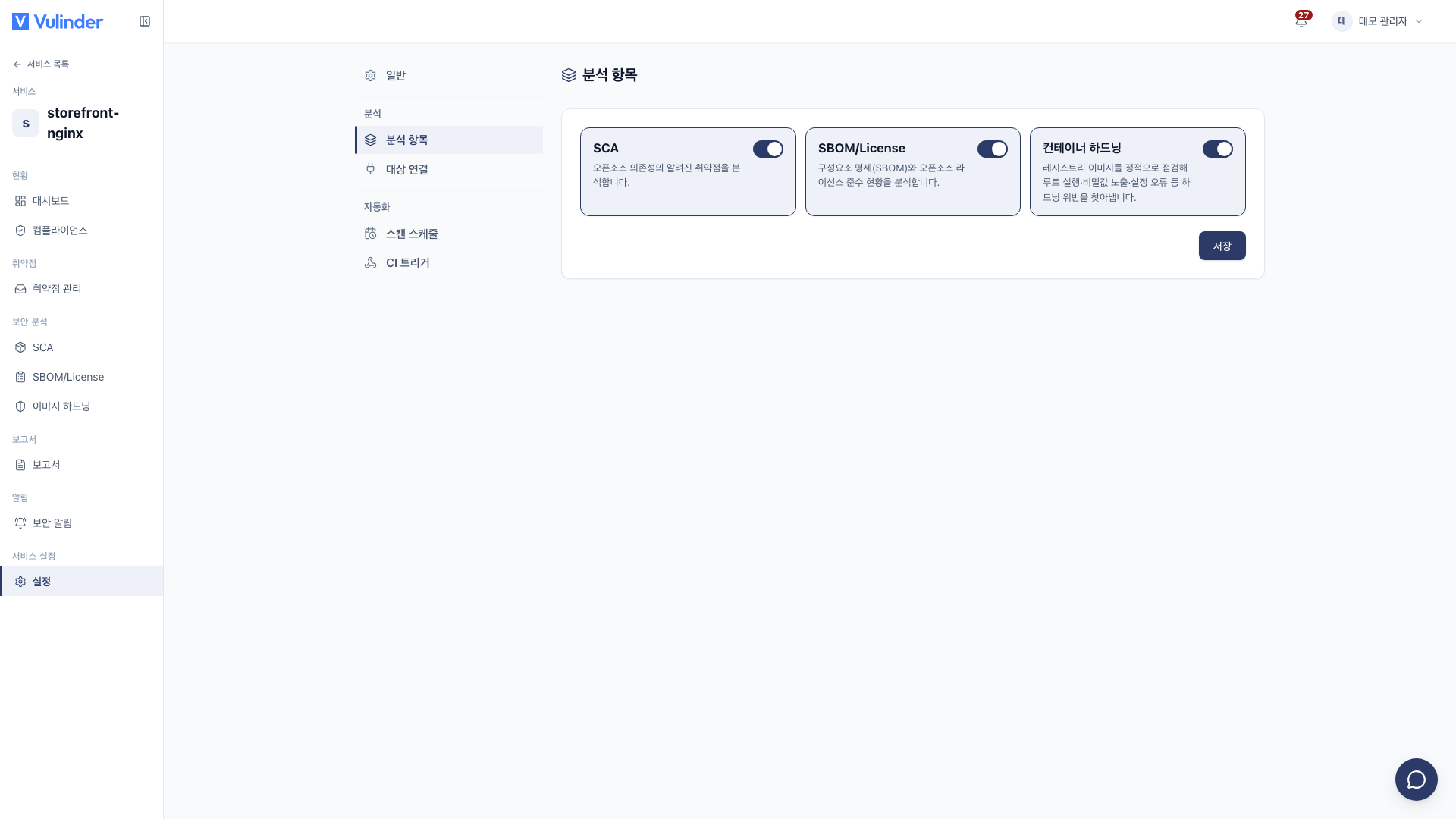
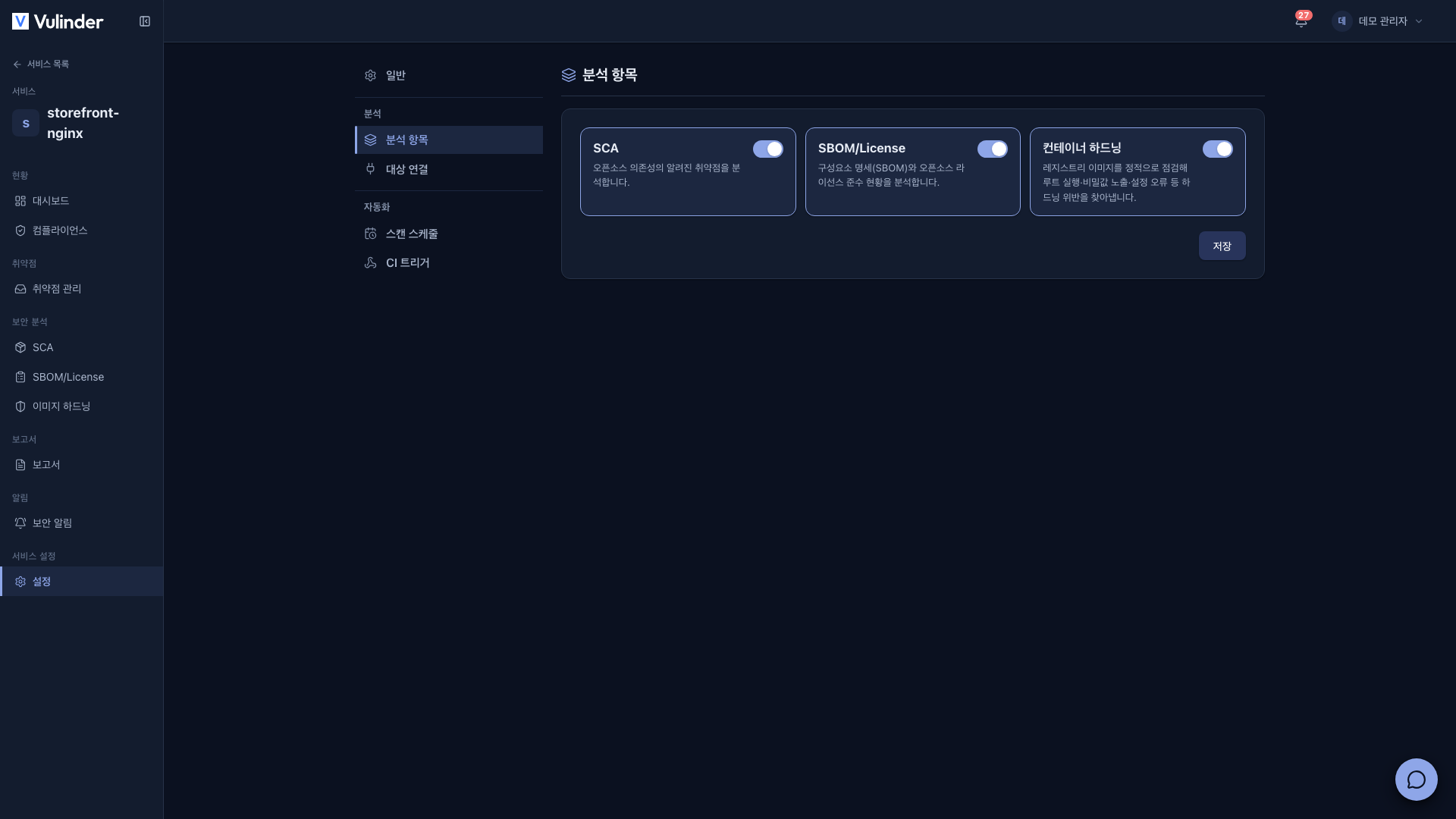
- SCA : Finds known vulnerabilities (CVEs) in OS packages and libraries inside the image.
- SBOM/License : Produces the image's component list and licenses.
- Container Hardening : Checks image configuration for security flaws such as running as root or unnecessary privileges (Image hardening).
After changing the switches, click Save.
Target connection
Under Container input method, choose Container Registry, Upload image file, or both.
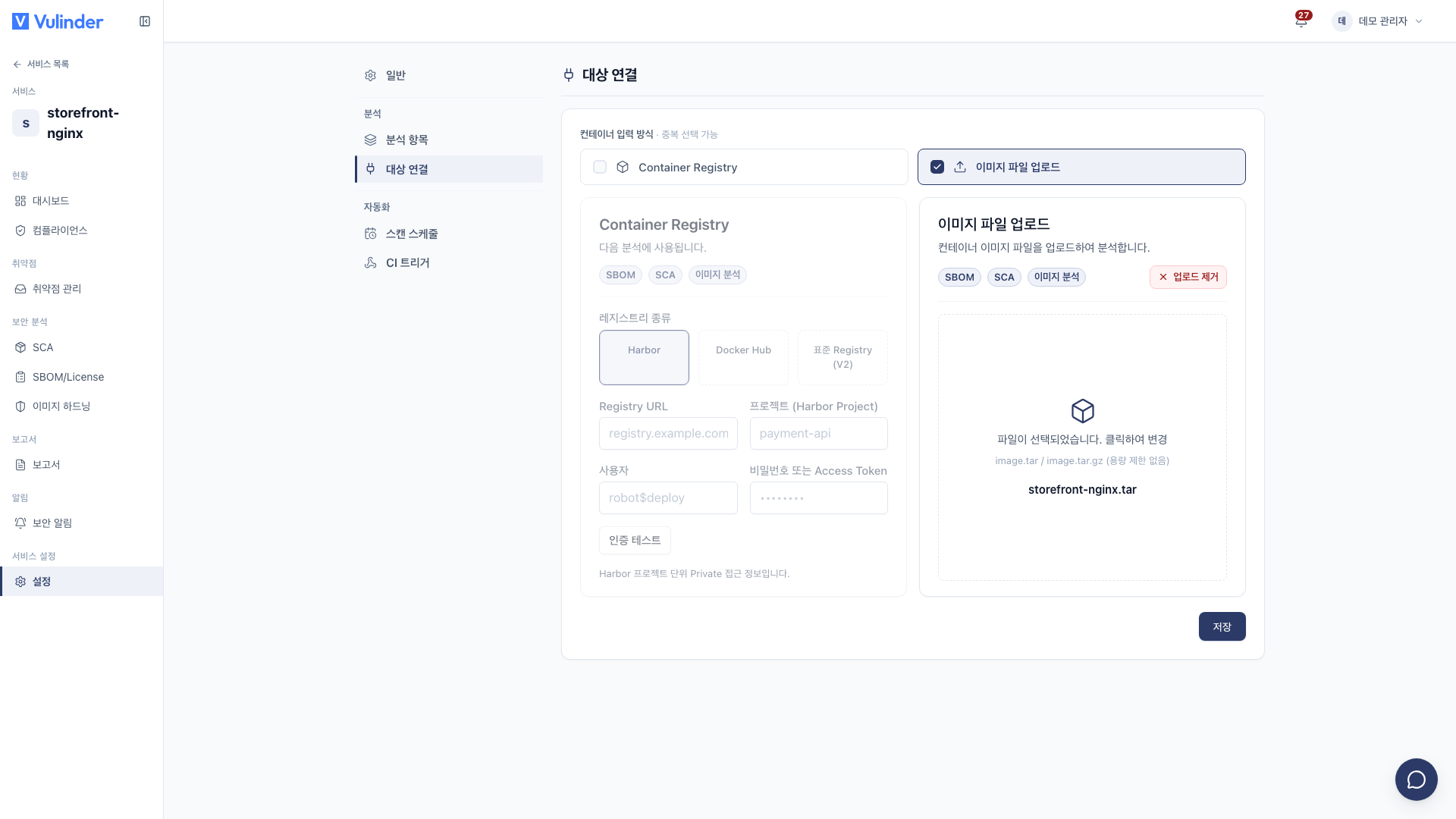
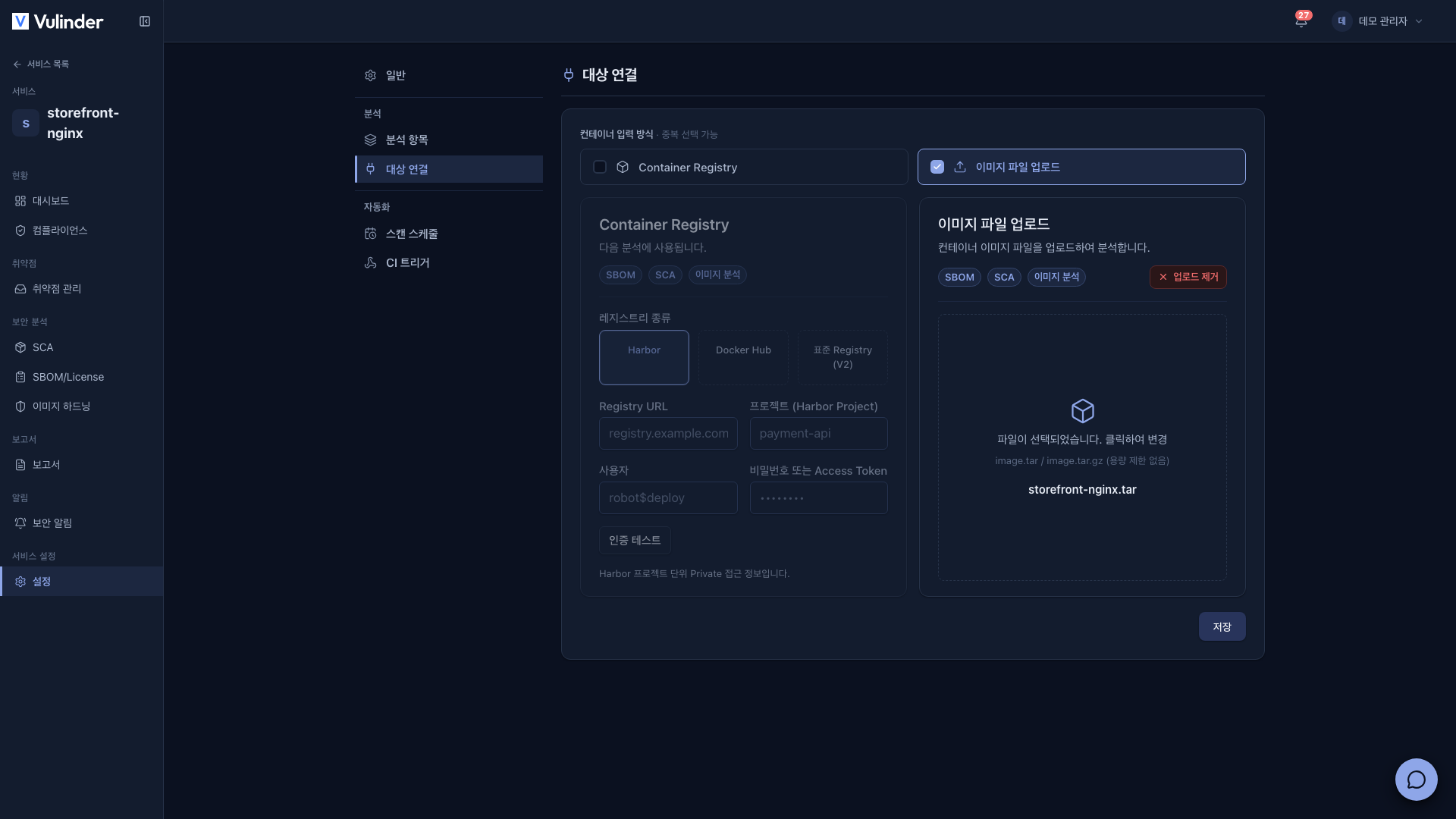
Container Registry
- Choose the Registry type (Harbor · Docker Hub · Standard Registry (V2)).
- Enter the registry address, the project (namespace · path), and the User. For types with a fixed address, such as Docker Hub, the address is shown as fixed.
- To change the credentials (password or access token), enter a new value.
- The saved value is shown masked; if you do not change the connection details, leave it blank to keep using the existing value.
- If you changed the registry type, address, project, or user, you must also re-enter the credentials before you can run the authentication test.
- Once the Authentication test passes, click Save.
Credentials with read permission to pull the image are enough.
Upload image file
If the registry is not reachable, upload an image file created with docker save (.tar, .tar.gz, .tgz). After choosing a new file, click Save to replace the existing one.
docker save my-app:1.4.2 -o my-app.tar
Automation
- Scan schedules : Re-analyze the registry image at a set time. Scan schedules
- CI triggers : Run analyses from your pipeline right after building and pushing the image. CI triggers
Related docs
- Container image : Registration steps and analysis types
- Service settings : Common usage and deleting a service