SBOM upload settings
On the settings screen of an SBOM upload service, you change whether license analysis runs and which SBOM file is analyzed. For how to open the screen and common behavior, see Service settings.
| Menu | Settings |
|---|---|
| General | Service name · description, delete service |
| Analysis > Analyses | SCA (keep on), License |
| Analysis > Target connection | Replace the SBOM file |
| Automation > Scan schedules | Recurring re-analysis (Scan schedules) |
Analyses
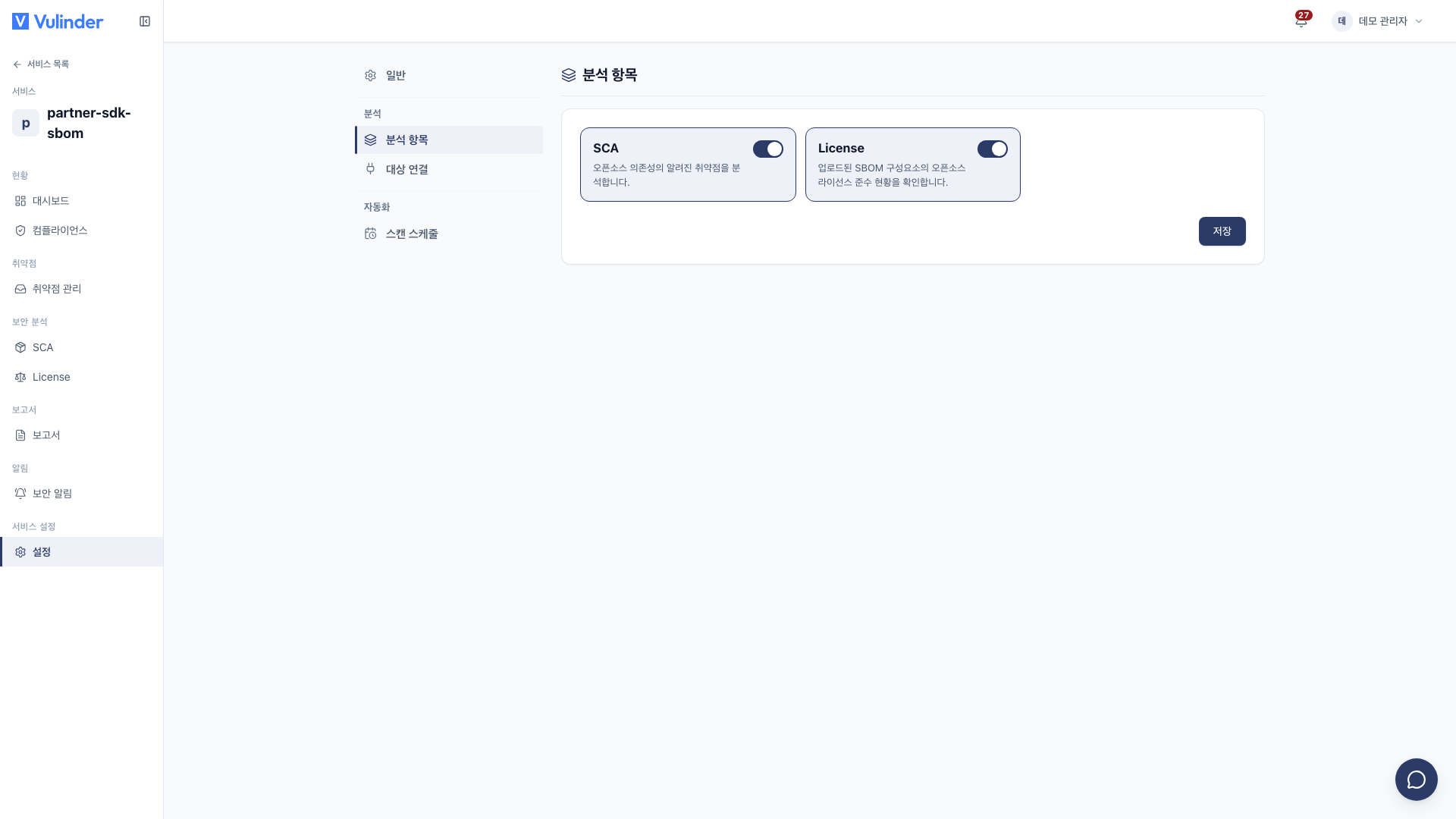
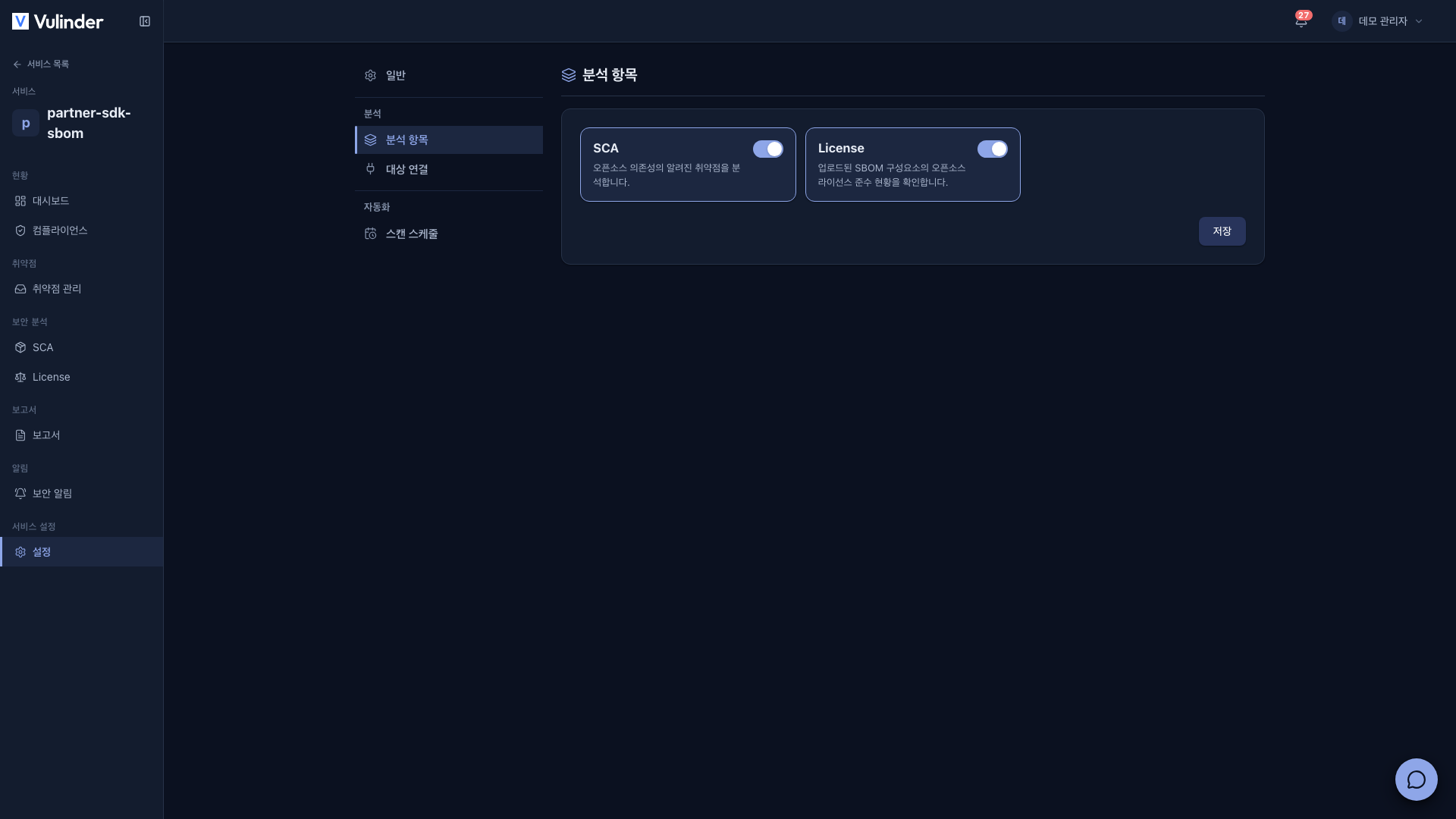
- SCA : Finds known vulnerabilities (CVEs) in the components listed in the SBOM. It is the only analysis of an SBOM service, so if you switch it off, "Select at least one analysis." appears and you cannot save.
- License : Classifies component licenses to find licenses with disclosure obligations (copyleft). If you turn it off, the License tab disappears from the service sidebar.
Target connection
After choosing a new SBOM file, click Save to replace the existing one, and the next analysis uses the new file. If you upload a new SBOM with every release, you can follow the history in the same service.
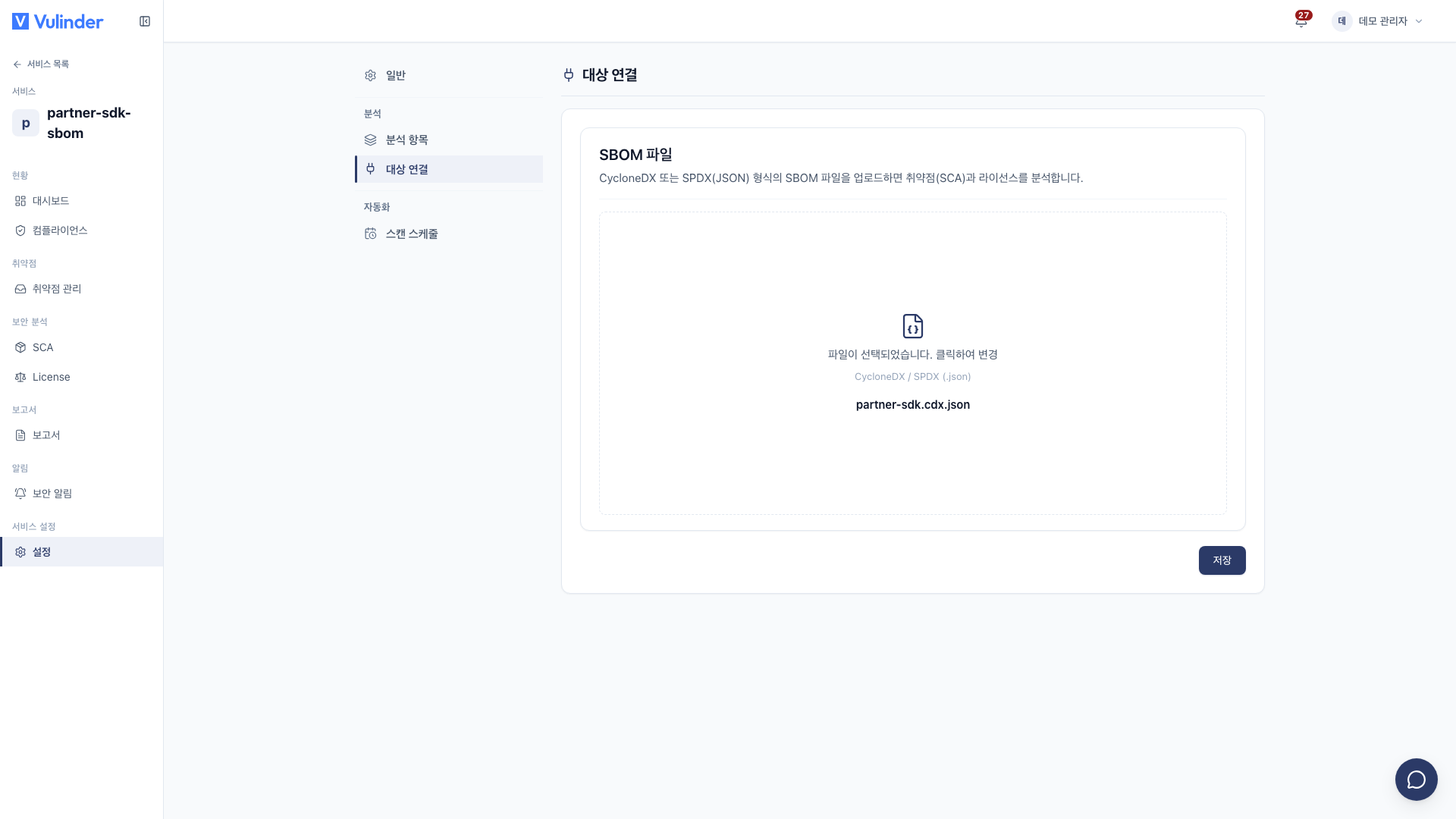
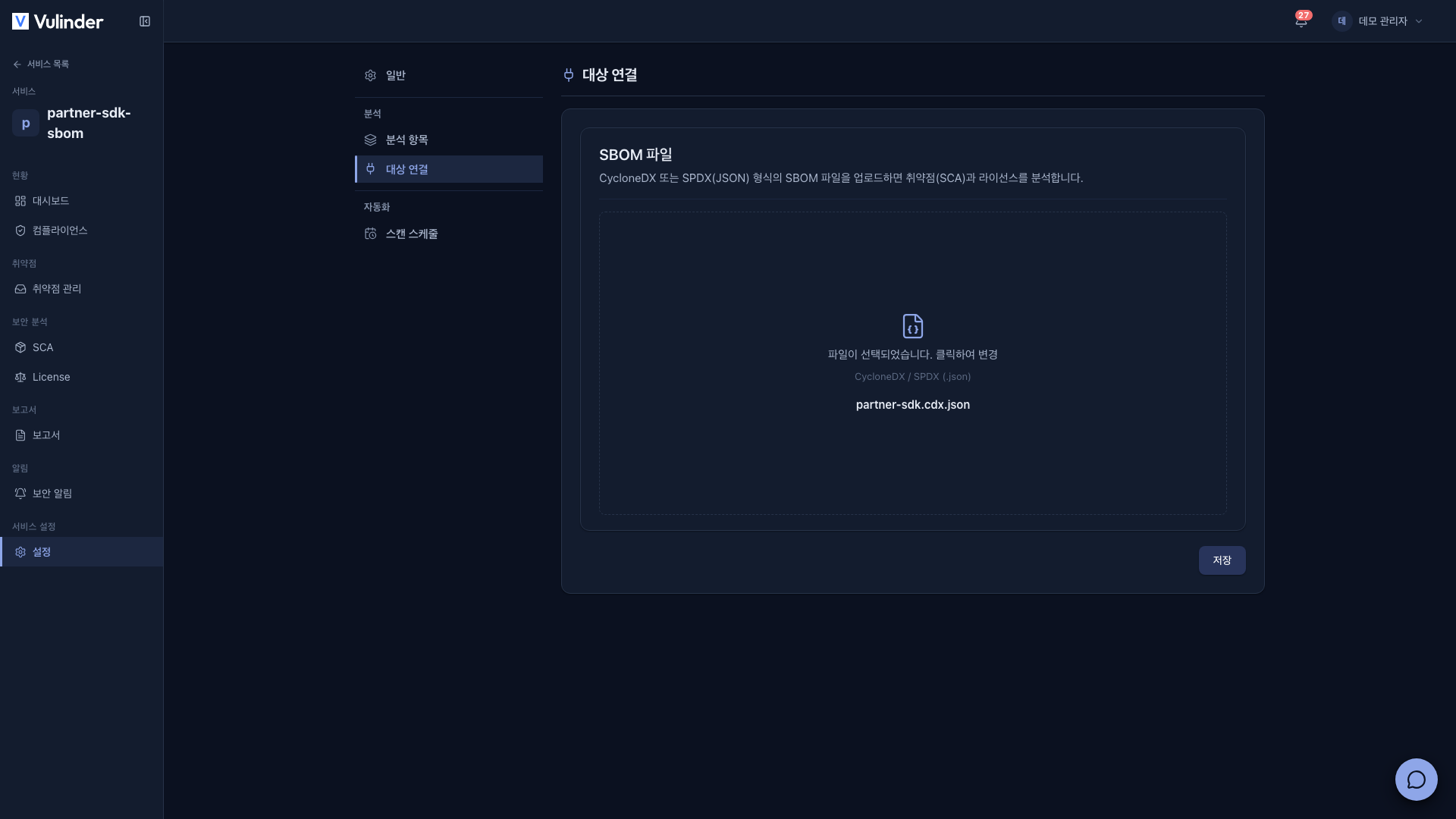
- Supported formats : CycloneDX · SPDX (JSON)
- After replacing the file, click Run analysis in the SCA · License tabs to analyze again.
Related docs
- SBOM upload : Registration steps and viewing results
- Service settings : Common usage and deleting a service