Server / host settings
A Host / Server service has a different menu layout from other types. Access details (Connect) and analysis targets (Analysis) are managed separately. For how to open the screen and common behavior, see Service settings.
| Menu | Settings |
|---|---|
| General | Basic information (host name · location · description), OS & spec information, delete service |
| Connect > Server access | Address · port, verification method (SSH / VPN), gateway, SSH account and authentication |
| Connect > K8s auth | kubeconfig or ServiceAccount token |
| Analysis > Analyses | Server vulnerability analysis · SBOM · runtime threat detection · K8s hardening · CIS, runtime collector |
| Analysis > Scan path | Directories to analyze on the server |
| Automation > Scan schedules | Recurring scans (Scan schedules) |
Servers/hosts do not have CI triggers.
General
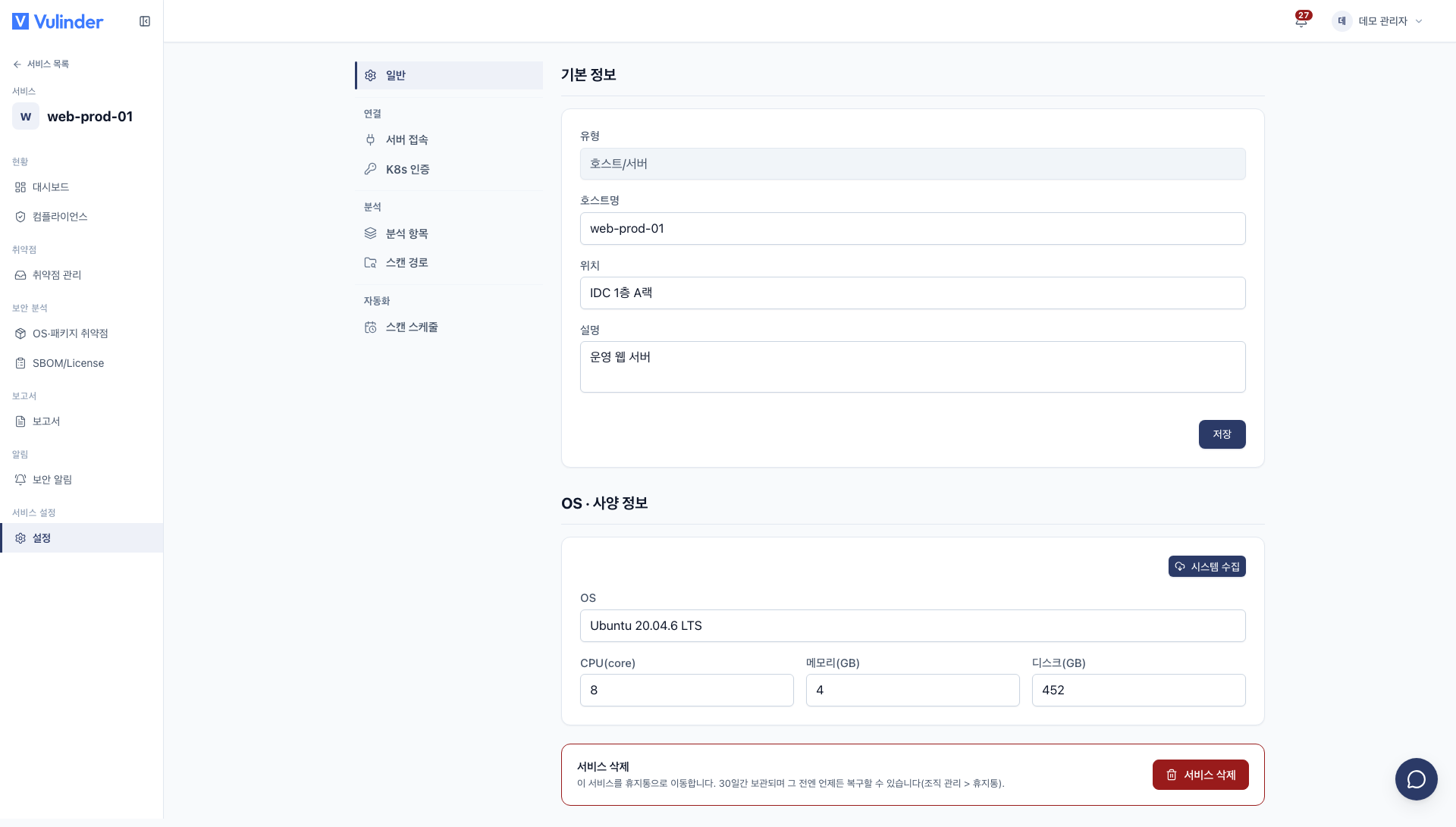
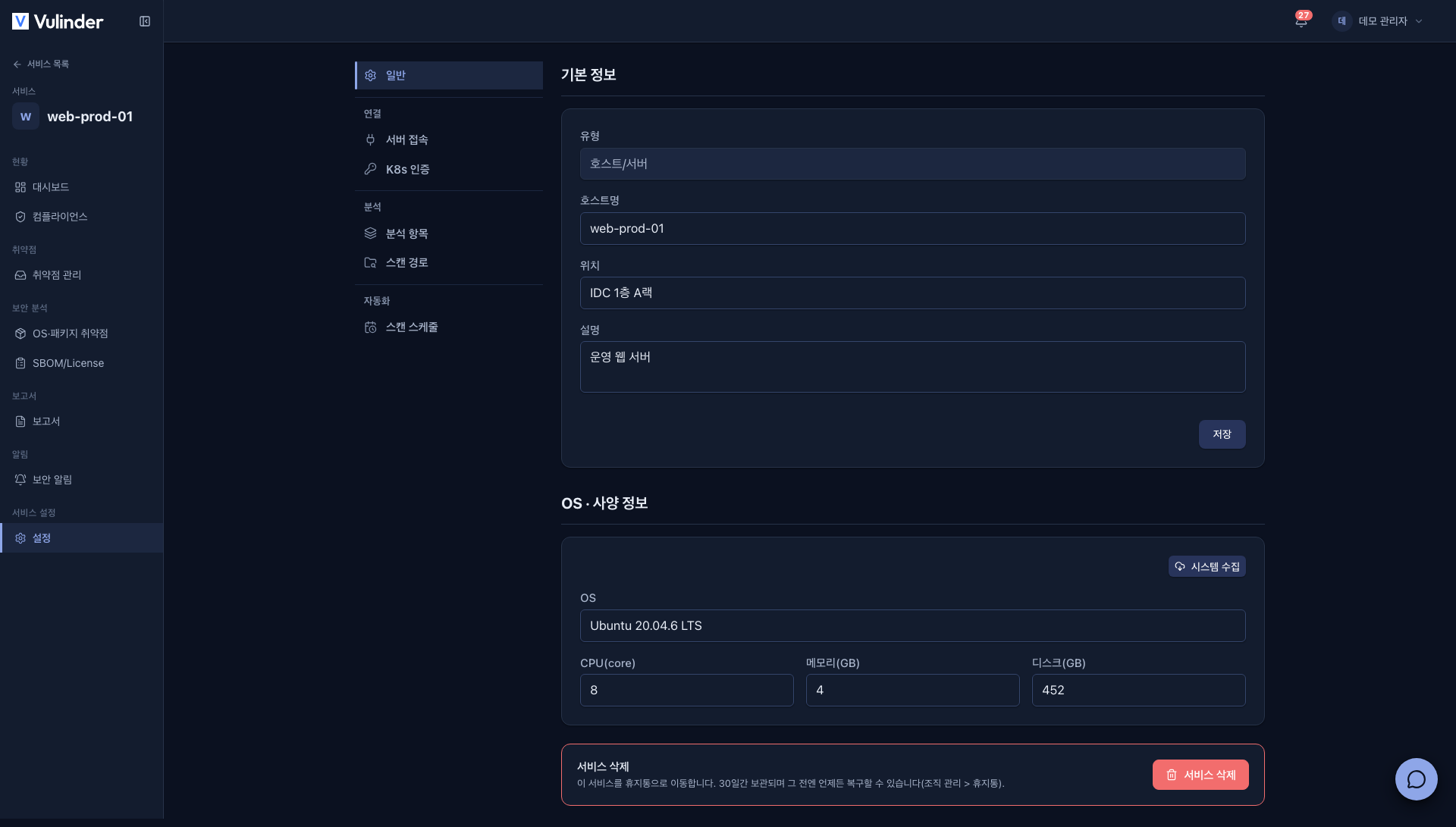
- Basic information : Change the Host name, Location (for example, the head office server room), and Description.
- OS & spec information : Click Collect system to connect to the server with the saved SSH access details and refill the OS, CPU, Memory (GB), and Disk (GB).
- If there are no SSH credentials, first enter a password or private key under Server access.
- Delete service : Shown only to admins. A deleted service moves to the trash and is kept for 30 days (Delete a service).
Server connection
Change how Vulinder reaches the server under Connect > Server access.
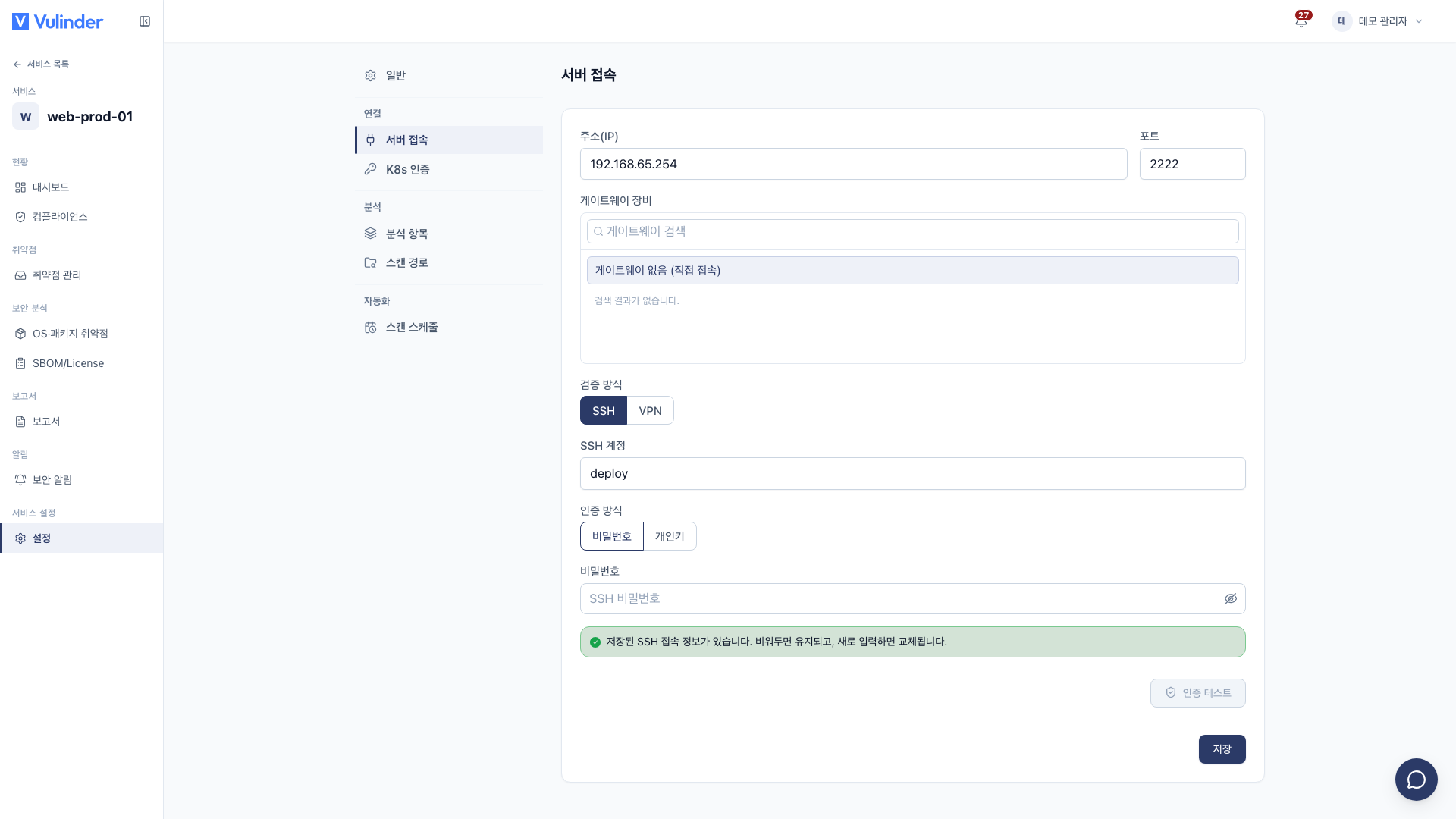
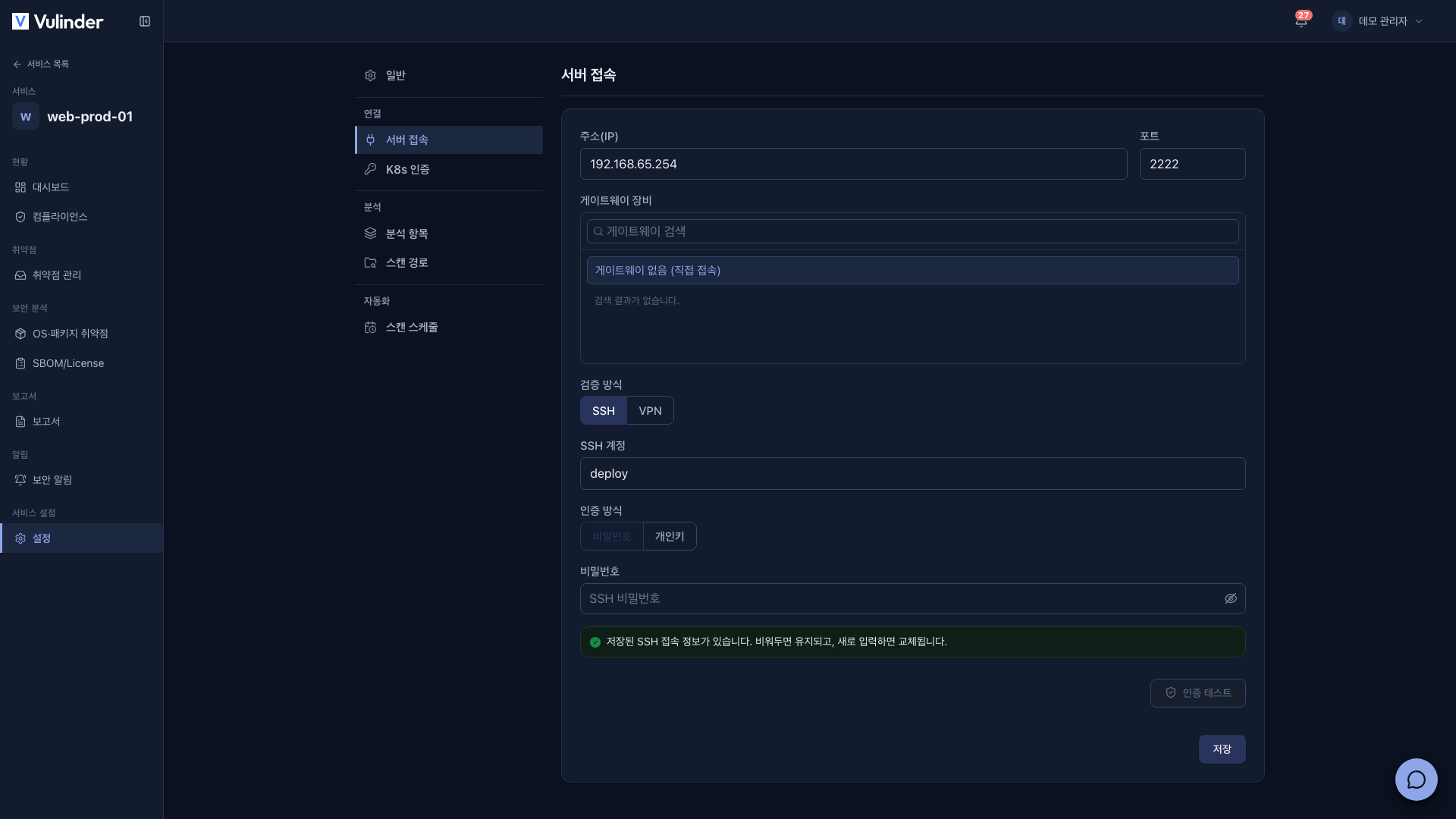
- Check the Address (IP) and Port. The saved port is filled in; the default at registration is 22.
- Choose the Verification method.
- SSH : Connect directly over the public network, or for a private network, specify a Gateway device to connect in multiple steps (hops).
- VPN : Choose one of your organization's VPN profiles to enter the private network, then connect.
- A VPN only provides the path into the internal network, so an SSH account is still required.
- When you choose VPN, a gateway cannot be used.
- If you have no profile, create one first in VPN profiles.
- Enter the SSH account and Authentication method (password or private key). Paste a private key into Private key (PEM), and if it has a passphrase, enter it in Passphrase (optional).
- Click Authentication test. If you changed the connection details, you can Save only after it succeeds ("You can save only after the SSH authentication test succeeds.").
If SSH access details are already saved, "Saved SSH connection info exists. Leave blank to keep it, or enter new values to replace it." is shown. Enter new values only when changing the password or key. However, if you change connection details such as the address, port, SSH account, verification method, or gateway, you must re-enter the password or private key before you can run the authentication test.
K8s auth
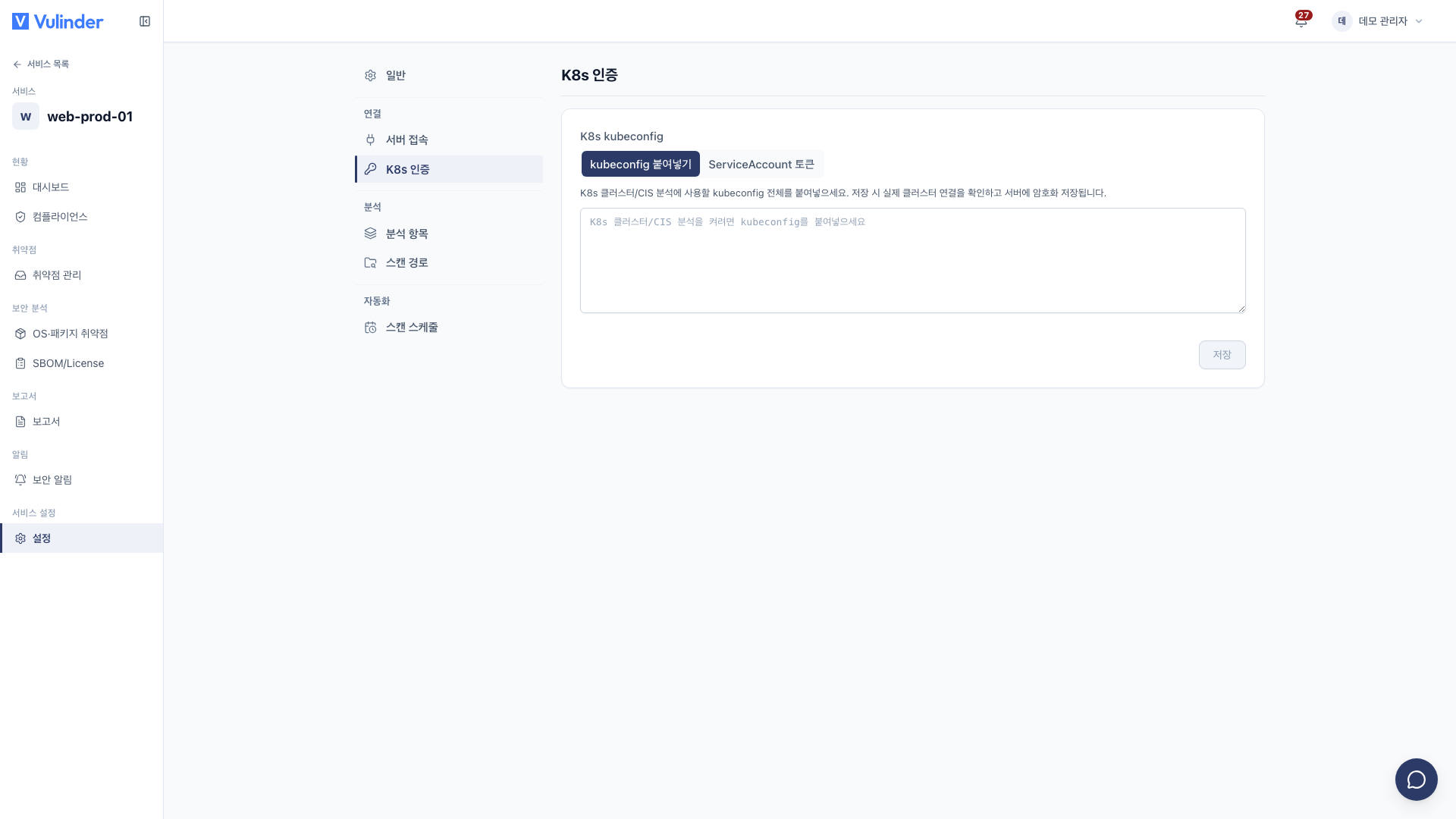
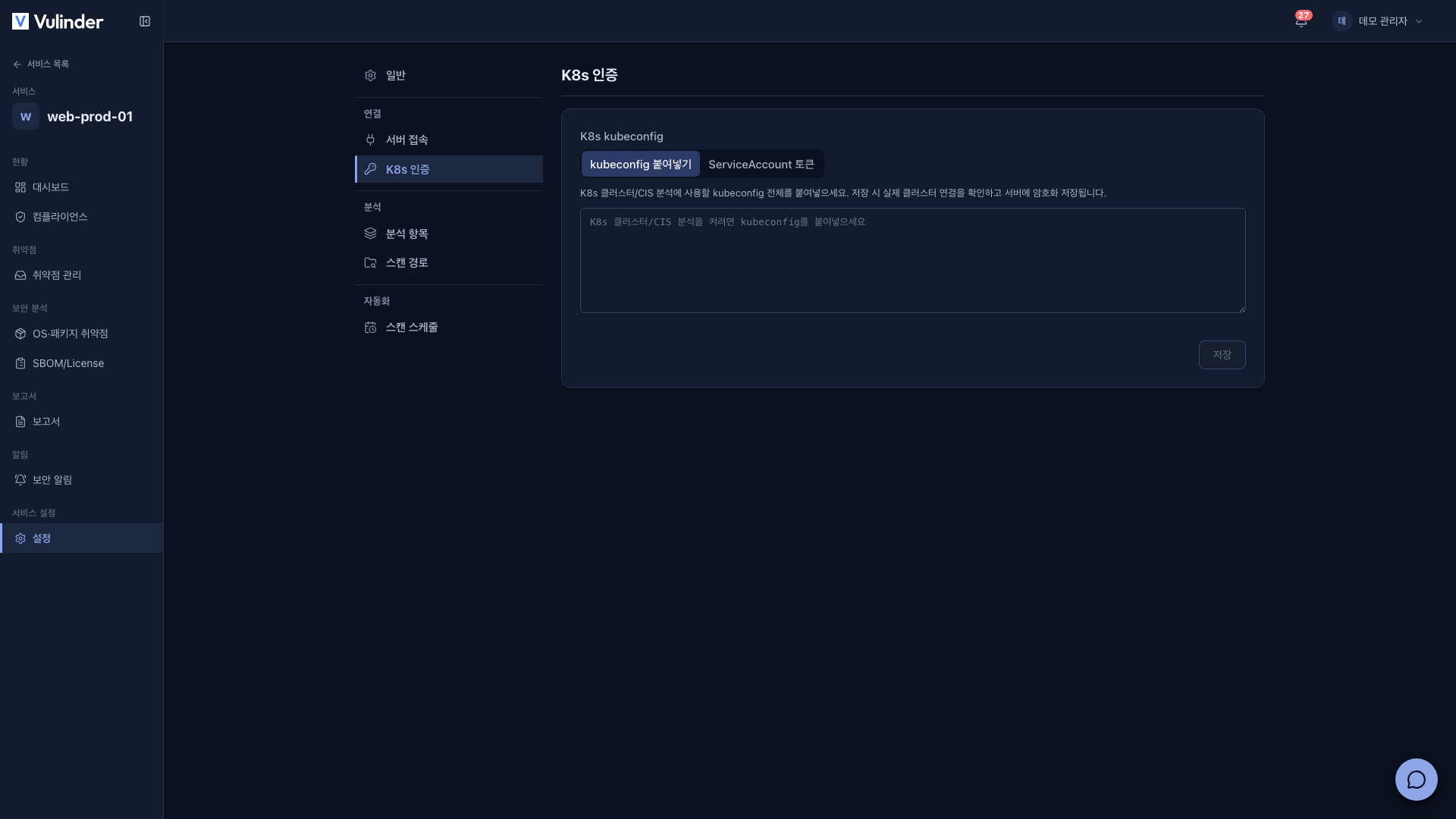
To turn on K8s cluster hardening or CIS Kubernetes Benchmark in Analyses, you need cluster access details. Choose one of two methods.
- Paste kubeconfig : Paste the cluster's full kubeconfig.
- On save, the actual cluster connection is checked and the value is stored encrypted.
- To replace it, paste a new kubeconfig; leave it blank to keep the existing value.
- ServiceAccount token : Enter three values, API server URL, ServiceAccount token, and CA certificate (PEM, optional), and the server builds and saves a kubeconfig.
- It works with any cluster, including cloud (EKS · GKE · AKS).
- Expand How to create a token to copy the commands that create a read-only ServiceAccount.
Turning on Connect without CA (insecure) can expose you to man-in-the-middle attacks. Provide a CA certificate whenever possible.
For connecting to a private cluster behind a gateway, see K8s cluster.
Analyses
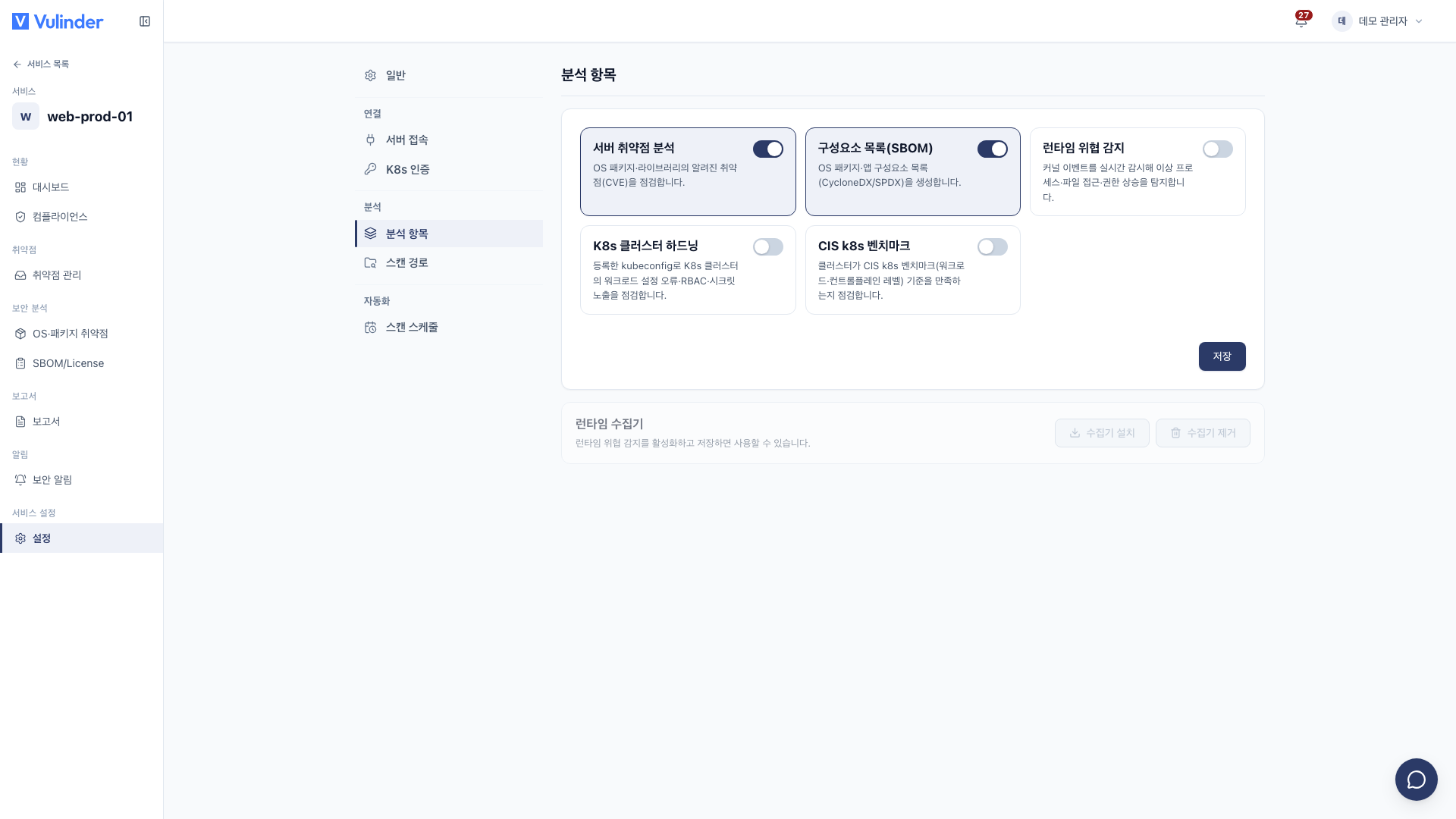
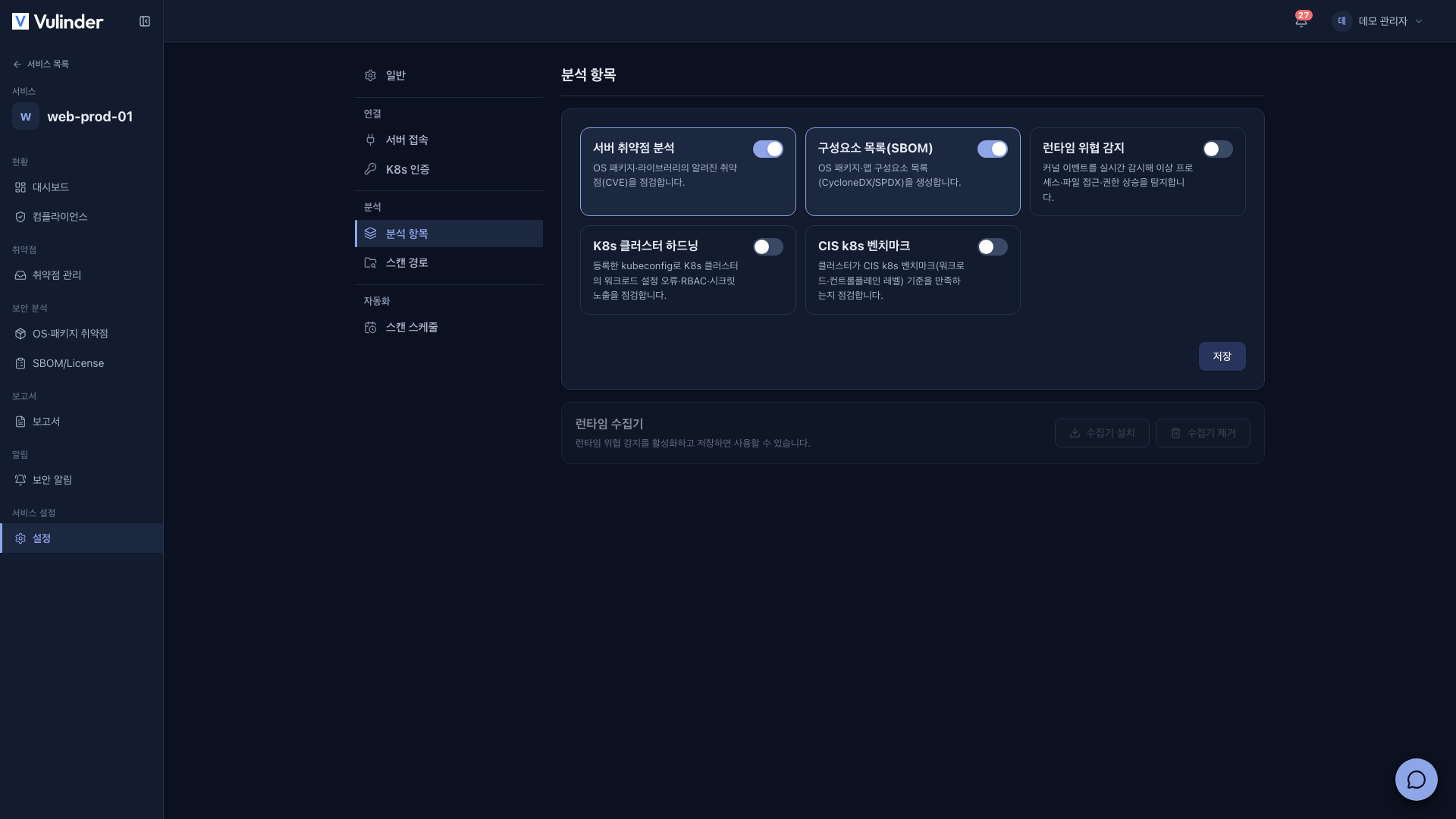
- Server vulnerability analysis : Checks OS packages and libraries for known vulnerabilities (CVEs). (OS / package vulnerabilities)
- Component inventory (SBOM) : Produces a list of OS packages and app components (CycloneDX/SPDX).
- Runtime threat detection : Watches kernel events in real time to detect abnormal processes, file access, and privilege escalation. (Runtime monitoring)
- K8s cluster hardening : Uses the registered kubeconfig to check workload misconfigurations, RBAC, and secret exposure. (K8s cluster)
- CIS Kubernetes Benchmark : Checks whether the cluster meets the CIS Kubernetes Benchmark. (CIS benchmark)
Besides runtime threat detection, at least one security analysis (server vulnerability analysis · SBOM · K8s cluster · CIS) must stay on. After changing the switches, click Save.
Runtime collector
- Turn on runtime threat detection under analyses and save; Install collector becomes available.
- Press Install collector to install a collector that watches kernel events on the target server.
- To remove it, press Remove collector.
For details, see Runtime monitoring.
Scan path
Set the directories that server vulnerability analysis and SBOM examine. On RHEL-family servers (RHEL · Amazon Linux, etc.), server vulnerability analysis checks OS packages only and does not use the scan path.
You can change scan paths only while server vulnerability analysis is saved as on. If it is off, the area is dimmed and locked, and Select paths from server and path removal are disabled. The same applies when you have turned the switch on but not saved yet.
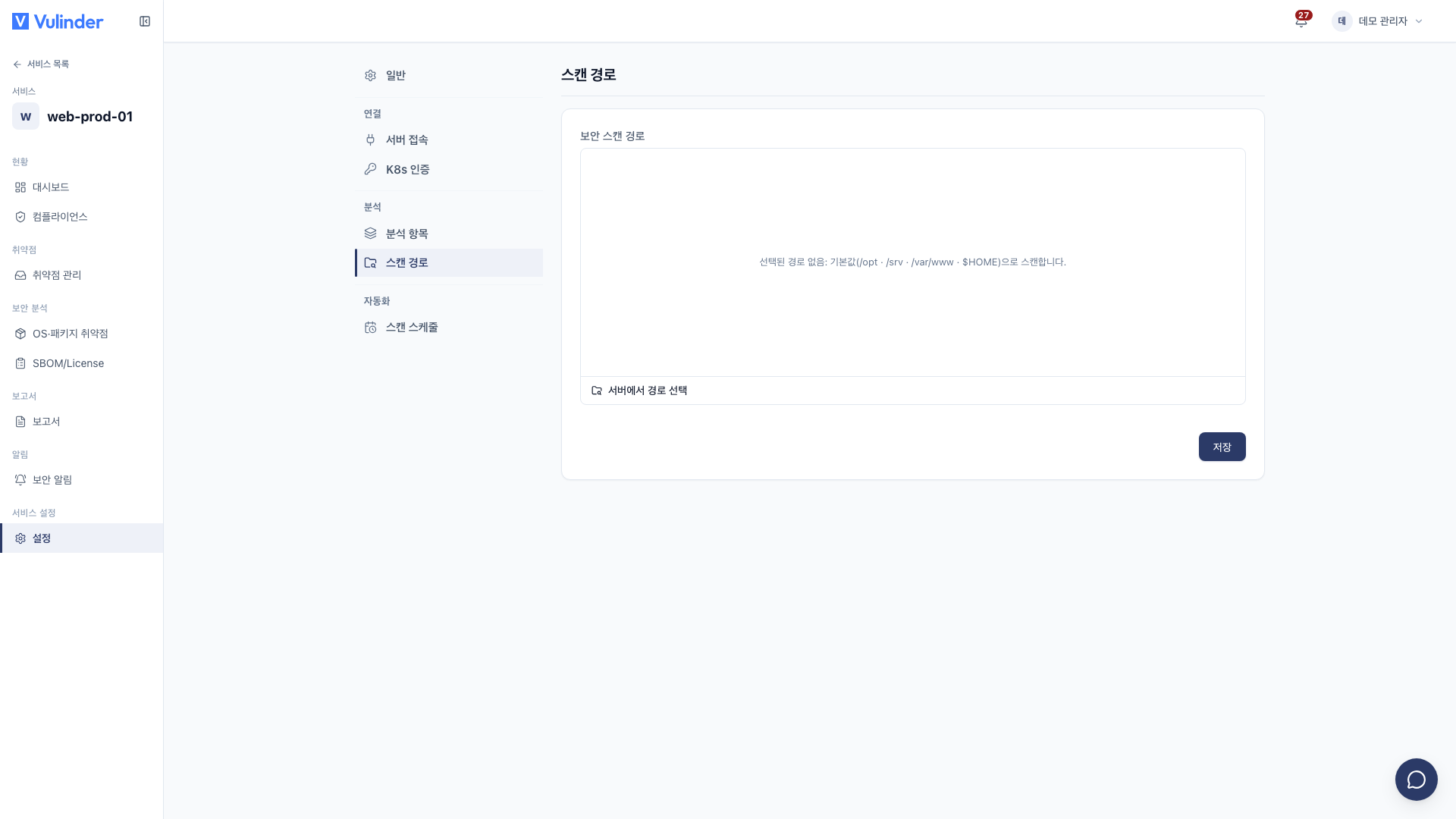
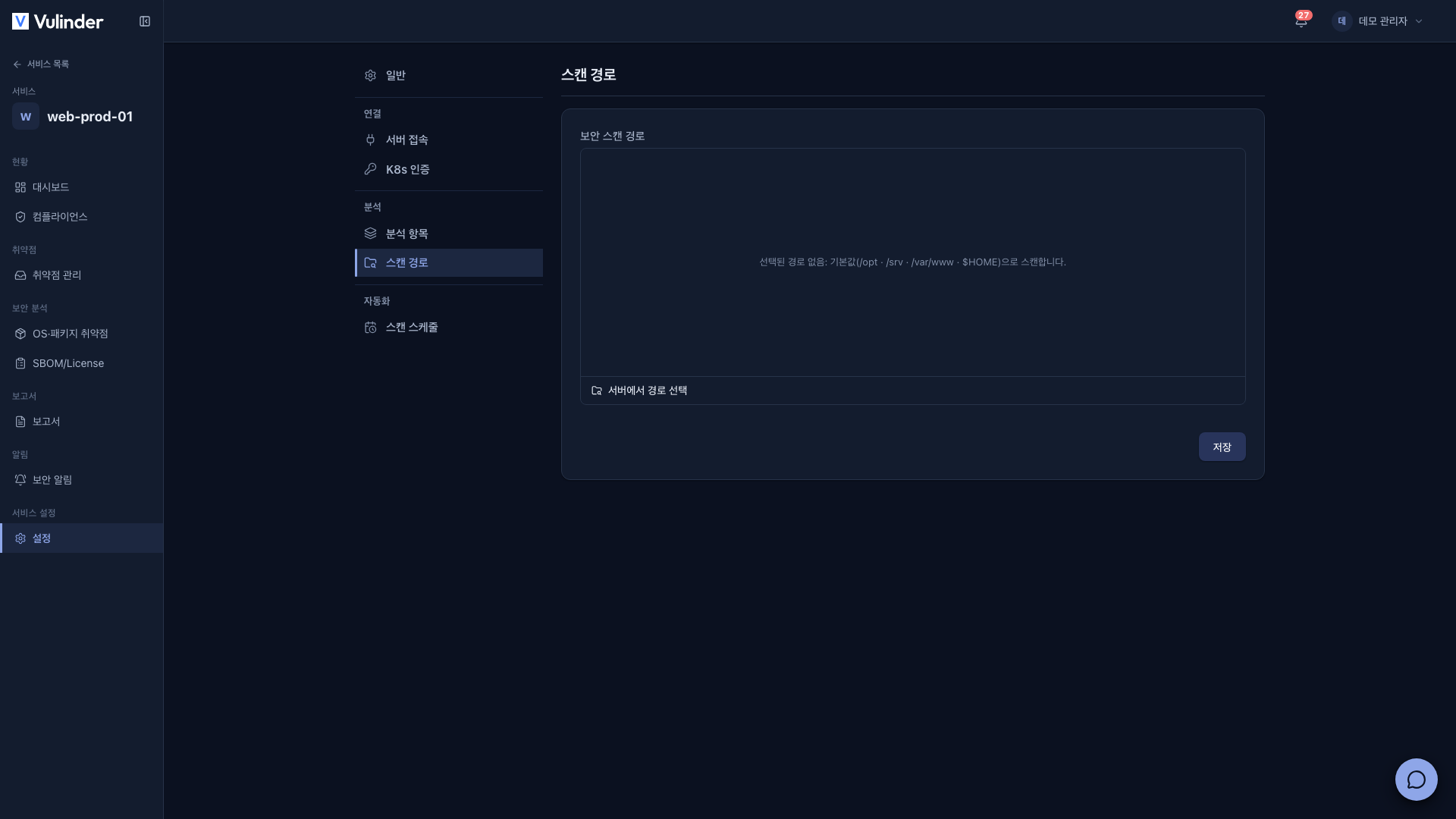
- Click Select paths from server and choose directories on the server.
- Remove any paths you do not need from the list.
- Click Save.
If you choose no paths, the defaults (/opt · /srv · /var/www · $HOME) are scanned.
Related docs
- Host / Server : Registration steps
- VPN profiles : Private network access path
- Web terminal : Connect from the browser with the saved SSH details
- Service settings : Common usage and deleting a service