Web service settings
A Web service (DAST) scans only domains whose ownership has been verified. You can run DAST only after saving the target URL and verifying domain ownership on the settings screen. For how to open the screen and common behavior, see Service settings.
| Menu | Settings |
|---|---|
| General | Service name · description, delete service |
| Analysis > Analyses | DAST (web services are DAST only) |
| Analysis > Ownership verification | Target URL, domain ownership verification |
| Automation > Scan schedules | Recurring scans (Scan schedules) |
Web services do not have CI triggers.
Ownership verification
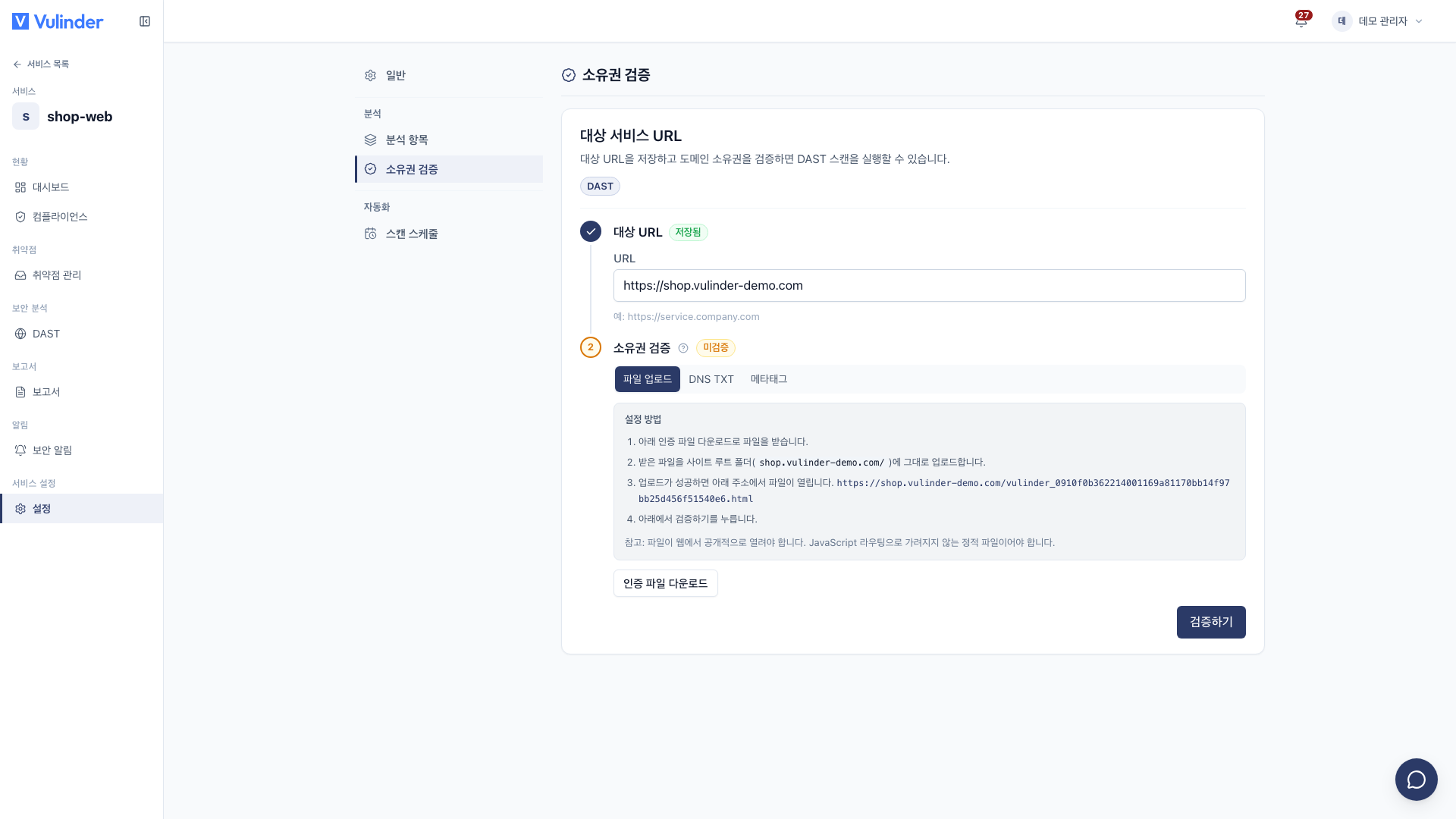
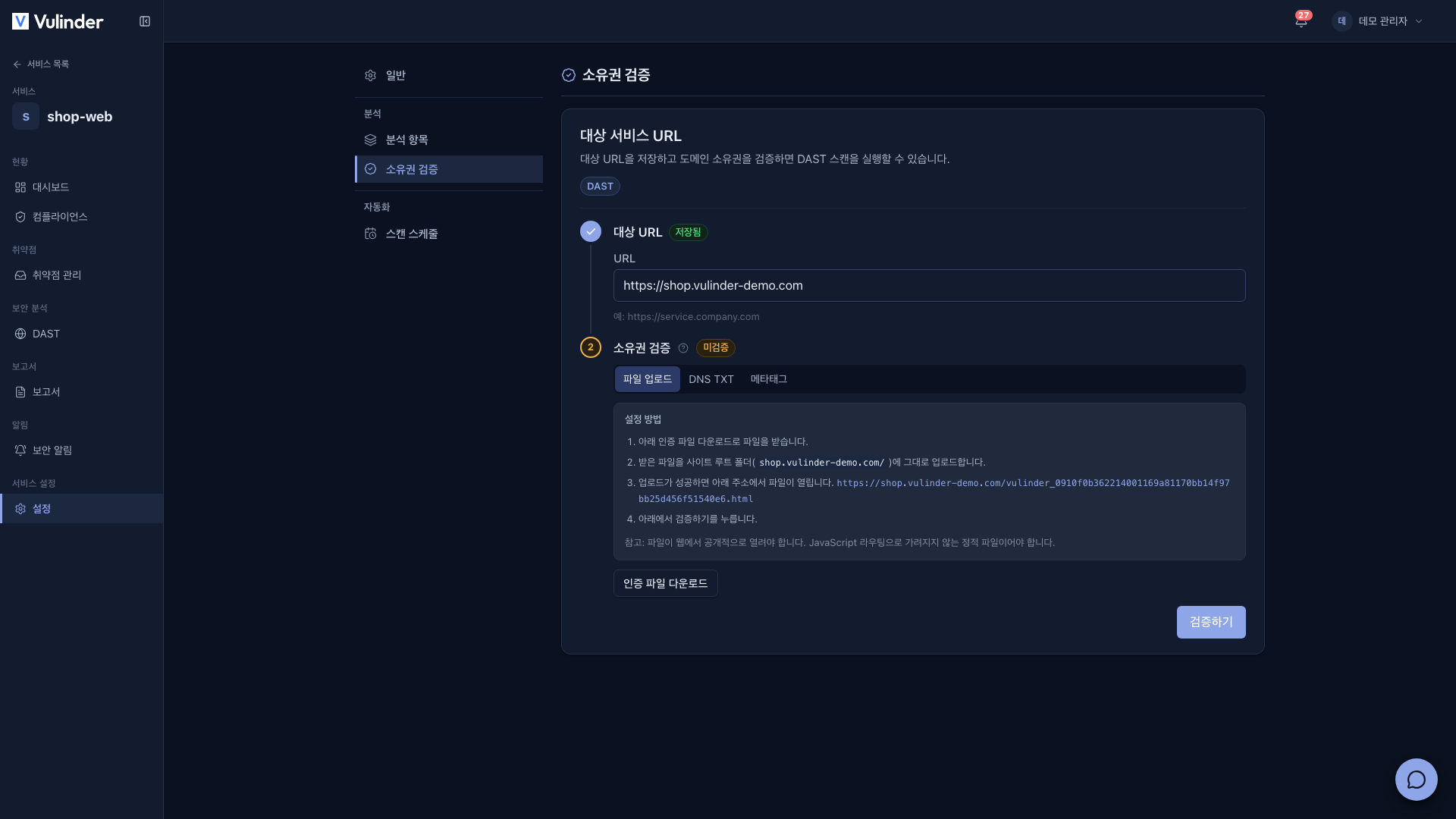
Step 1 · Save the target URL
- Enter the address to check in Target service URL (for example,
https://service.company.com). - Click Save.
- Only
https://addresses can be saved. Anhttp://address is rejected with the notice "DAST targets support https only. Enter an https:// URL. (http cannot be saved)". - When you change the URL, it is marked Changed, and after saving you must verify ownership again before you can scan. You cannot proceed with verification until you save.
Step 2 · Verify domain ownership
Choose one of the three methods below, register the token, then click Verify.
File upload
- Download the
vulinder_<token>.htmlfile with Download verification file. - Upload the file as is to your site's root folder. If the upload succeeded, the file opens at the address shown on screen.
- Click Verify.
The file must be publicly accessible on the web. It must be a static file that is not hidden by JavaScript routing.
DNS TXT record
- Sign in where you bought the domain (its DNS management screen).
- Add a TXT record using the Host/Name and TXT record value shown on screen.
- Click Verify.
DNS changes can take time to apply. If the record is not found right away, wait up to a day and try again.
Meta tag
- Copy the meta tag on screen.
- Paste it into the
<head>section of your homepage HTML (before the first<body>). - Click Verify.
Tags rendered by JavaScript are not recognized. The tag must be in the homepage's original HTML.
Verification result
- On success, the Verified badge and Verified at time are shown, and you can run analyses from the DAST tab.
- On failure, Verification failed and the reason are shown. Check where you registered the token, then click Verify again.
- Ownership is checked again on every scan. If you remove the file, tag, or record, later scans fail, so keep it in place.
Related docs
- Web service (DAST) : Registration steps and the vulnerabilities it finds
- Service settings : Common usage and deleting a service
- Scan schedules : Recurring scans