Service settings
After you register a service, you change its name, analyses, analysis target connection (repository, registry, server access, and so on), and scan automation on the Service settings screen. The left menu differs by service type, so check the common usage in this document first, then follow the settings document for your service type.
Open the settings screen
- Open a service from [Services] to enter the service screen.
- Click [Settings] under Service settings at the bottom of the left sidebar.
- Choose the item to change from the left menu of the settings screen. General opens first.
Each item has its own address (for example, /services/<service ID>/settings/analyses), so you can bookmark it or share the link with a colleague. If you open the address of an item that the service type does not have, you are taken to General.
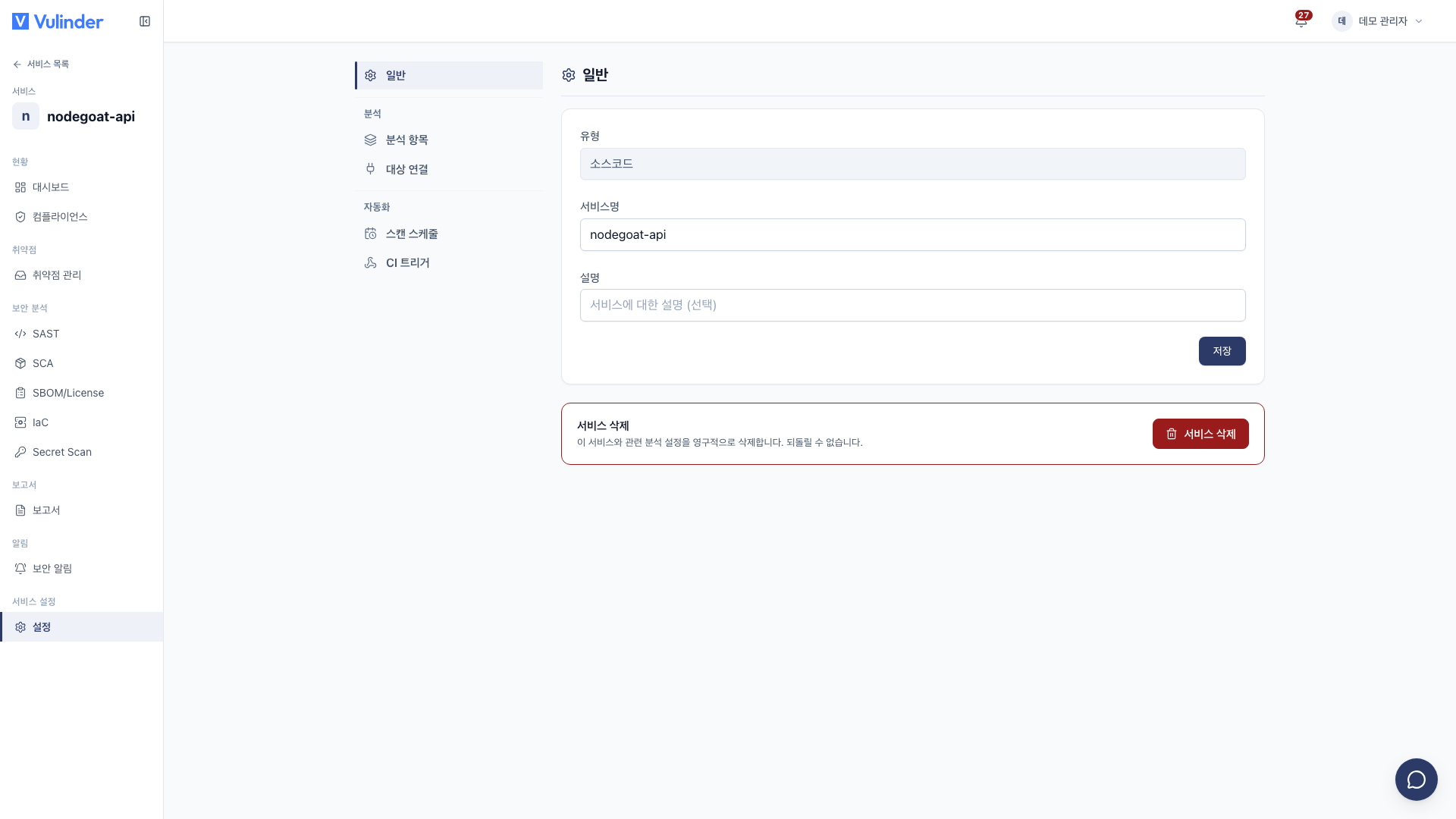
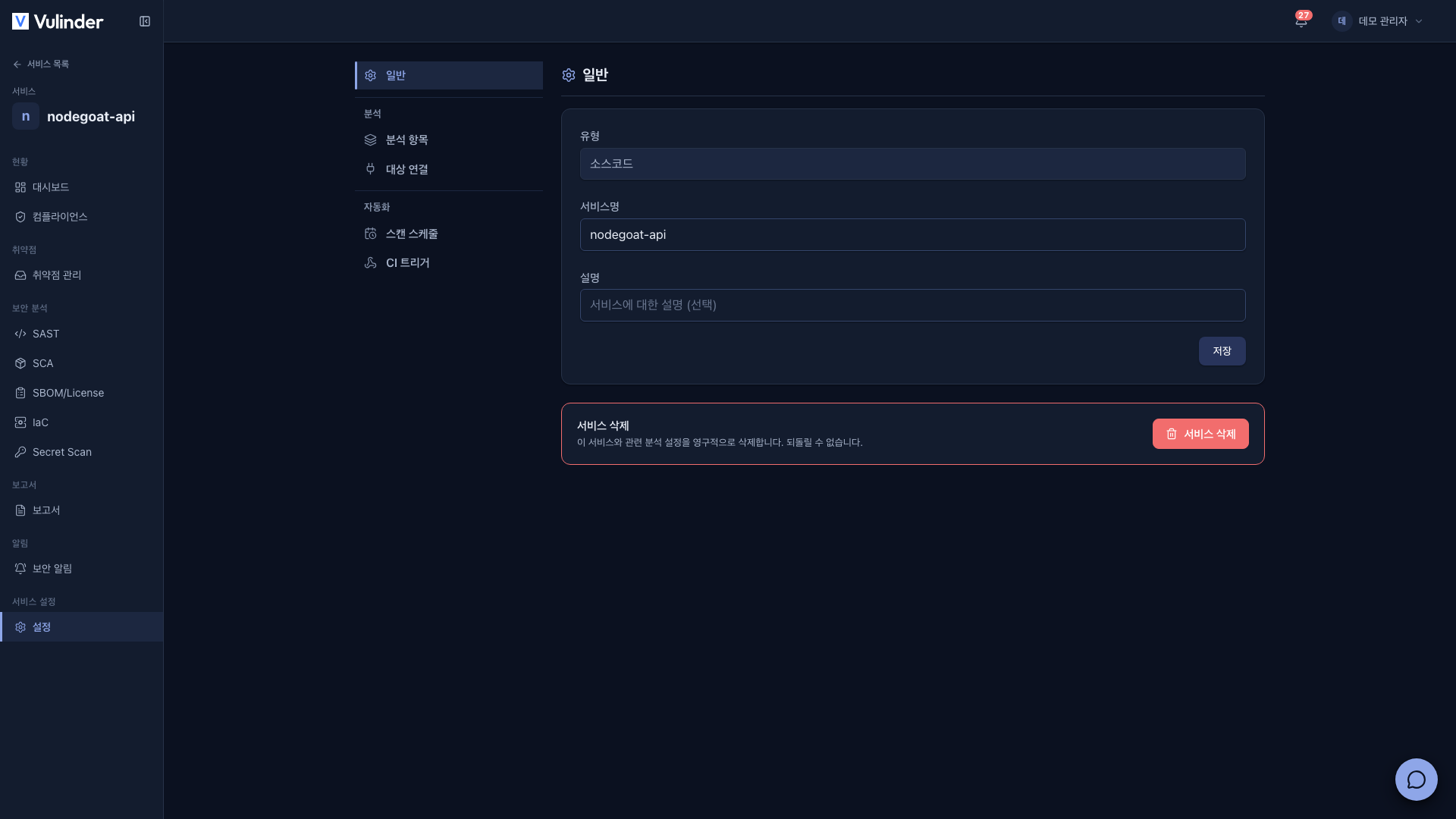
Menus by type
| Type | General | Connect | Analysis | Automation |
|---|---|---|---|---|
| Source code | General | Analyses · Target connection | Scan schedules · CI triggers | |
| Container image | General | Analyses · Target connection | Scan schedules · CI triggers | |
| Web service | General | Analyses · Ownership verification | Scan schedules | |
| Server / host | General | Server access · K8s auth | Analyses · Scan path | Scan schedules |
| SBOM upload | General | Analyses · Target connection | Scan schedules | |
| Binary file | General | Analyses · Target connection | Scan schedules |
Scan schedules and CI triggers in the Automation group work the same regardless of type, so they are covered in separate documents.
How saving works
- Each item (section) has its own save button. Values you change in an item are applied only when you click that item's Save, and "Saved." is shown once they are saved.
- When you change values that require authentication, such as a repository token, registry credentials, or an SSH account, they are saved only after passing the authentication test. Until then, the notice "The changed ... settings must pass the authentication test before they can be saved." is shown.
- Saved tokens, passwords, and keys are shown masked.
- Leave them blank to keep the existing values; they are replaced only when you enter new ones.
- If you change connection details such as the address or account, you must also re-enter the token, password, or key for the authentication test.
- At least one item must stay on in Analyses. If you turn them all off, "Select at least one analysis." is shown and nothing is saved.
General
Basic information available for every type.
- Type : The service type you chose at registration. It cannot be changed.
- Service name : The name shown in lists and detail screens.
- Description : A note about the service (optional).
The server / host type has different General items. See Server / host settings.
Delete a service
The Delete service area is at the bottom of the General screen. It is shown only to admins.
- Click Delete service.
- In the confirmation dialog, enter the service name exactly.
- Click Move to trash.
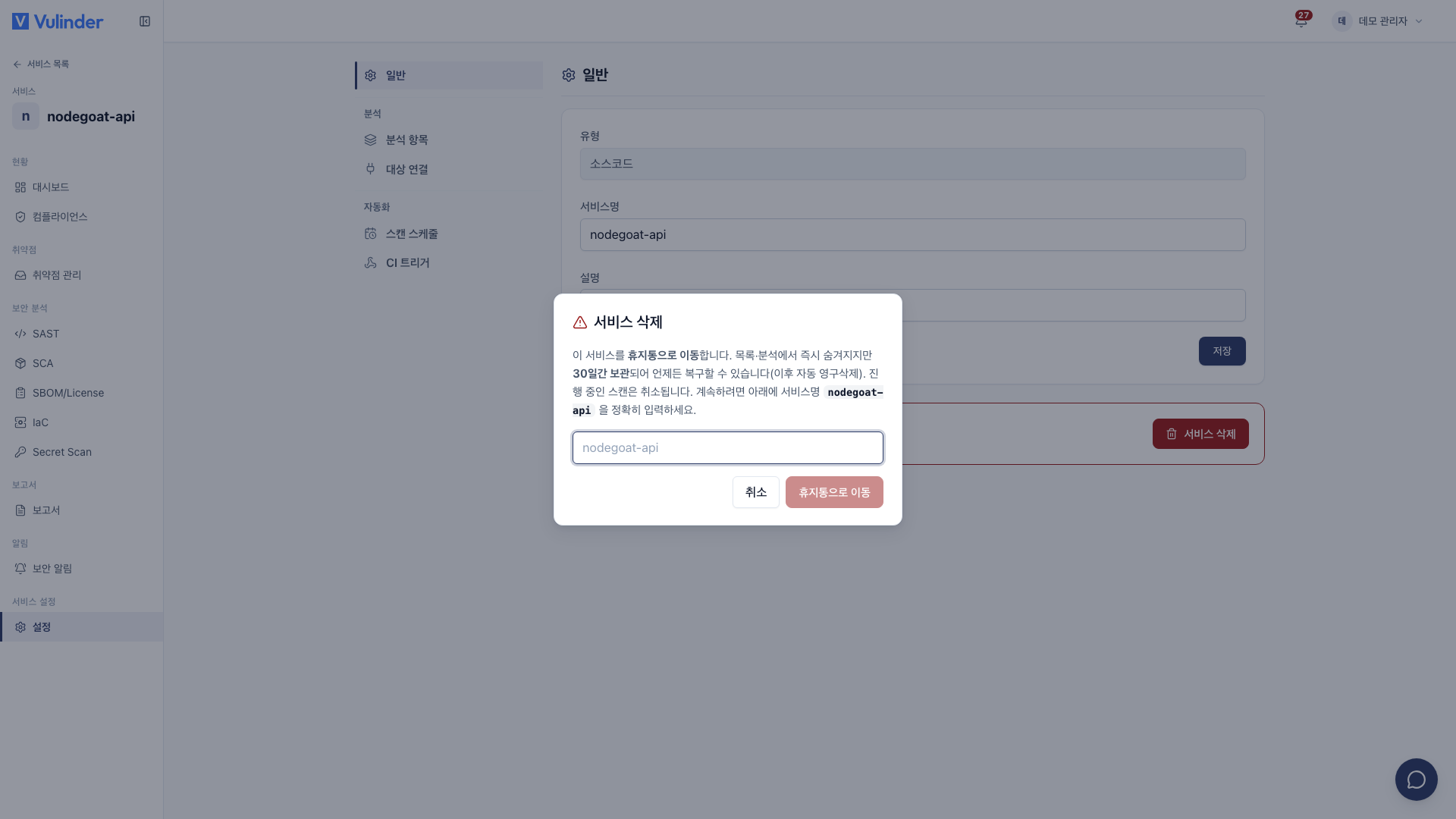
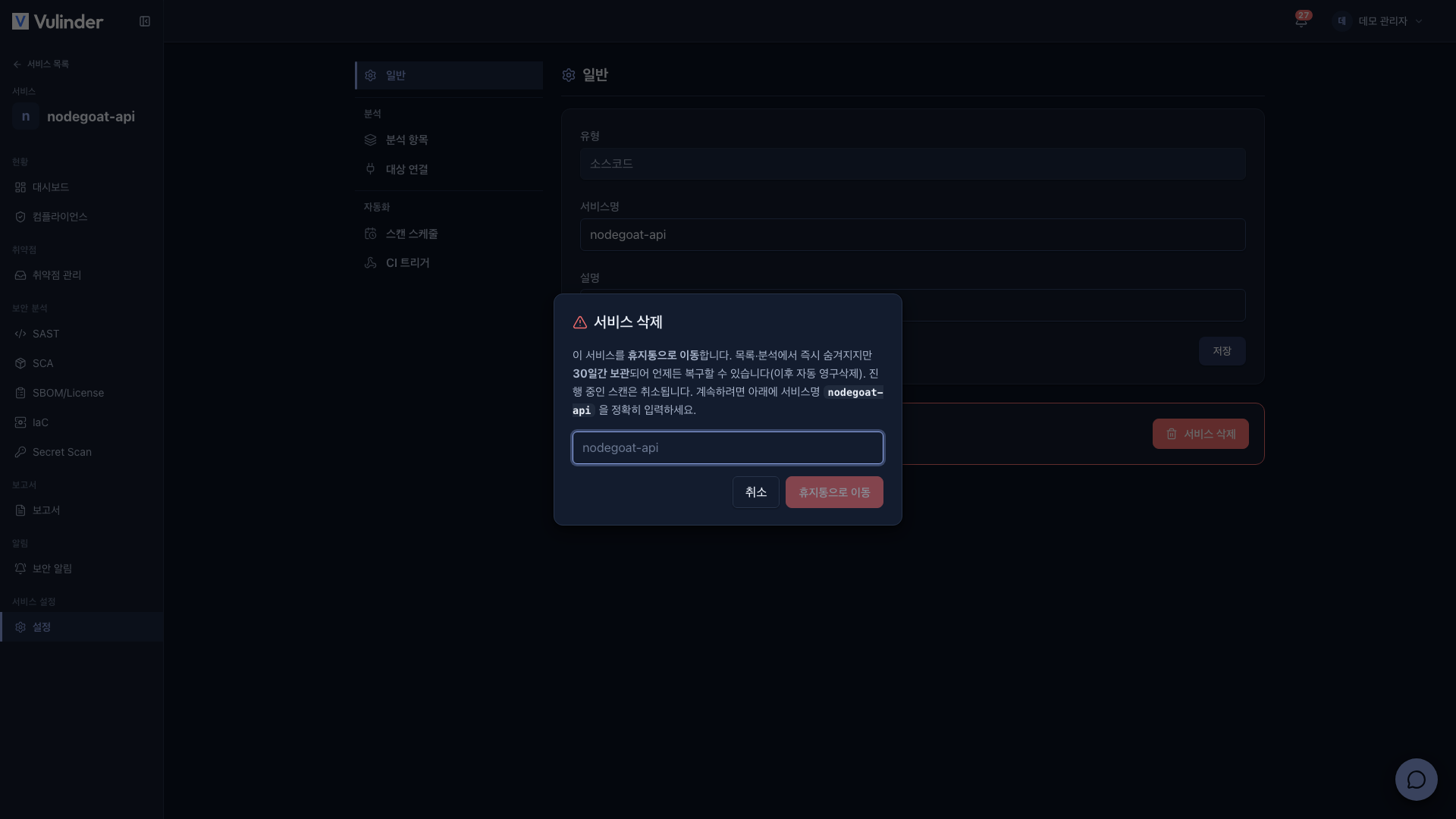
A deleted service is not removed right away: it moves to the trash and is kept for 30 days. During that time you can restore it from Trash; after 30 days it is permanently deleted automatically.
Permissions
- Any member who can access the service can open the settings screen.
- Only admins can delete a service. The delete area is not shown to managers and members.
- For the full set of permissions by role, see Members & Roles.
Related docs
- Source code settings · Container image settings · Web service settings
- Server / host settings · SBOM upload settings · Binary file settings
- Scan schedules · CI triggers : Automation settings
- Trash : Restore deleted services