Web Service (DAST)
Code and image scans catch flaws before deployment, but some vulnerabilities only surface in a real running environment. By sending actual requests to a running web service, this finds vulnerabilities that only surface dynamically (DAST). To prevent abuse, you can scan only domains you own/manage, and ownership is verified after registration, before scanning.
- Analysis : Dynamic testing of a running web service (DAST)
- Target : Only your own domains with verified ownership
- Proof of ownership : HTML file upload · meta tag · DNS TXT
- What you need : The URL to test, control over the domain
Independent of language or stack. Web applications reachable over HTTPS are in scope, and template-based checks also probe network exposure surfaces (HTTP / DNS / TCP).
What you need
Two things are required to inspect a web service.
- URL to test : a running web service reachable over
https:// - Domain ownership : only domains you own and control are eligible. Prove ownership with one of HTML file upload · meta tag · DNS TXT; the detailed methods are described under Ownership verification below.
Registration steps
On the [Services] page, click Register service and select Web service to start the four-step wizard.
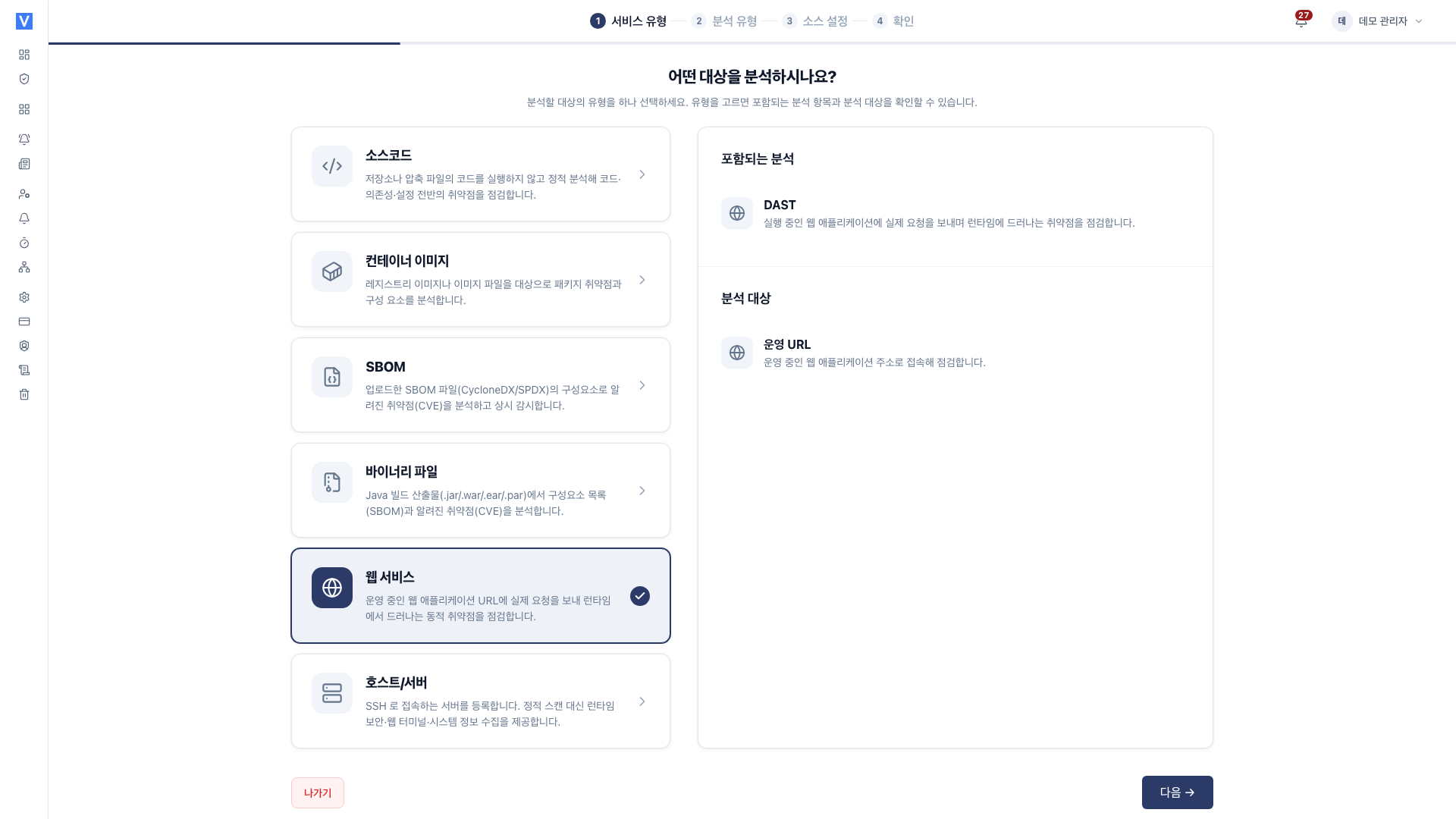
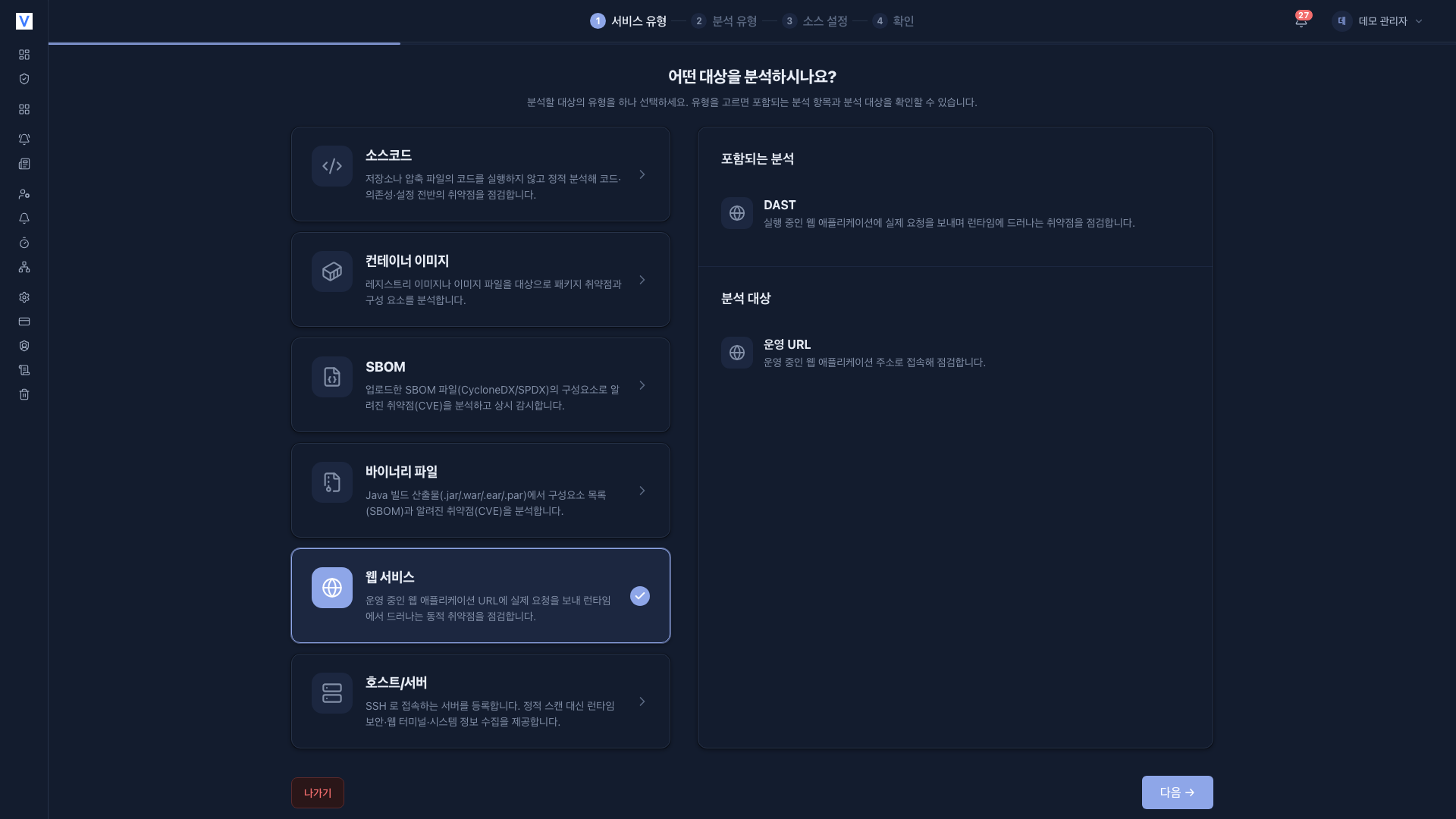
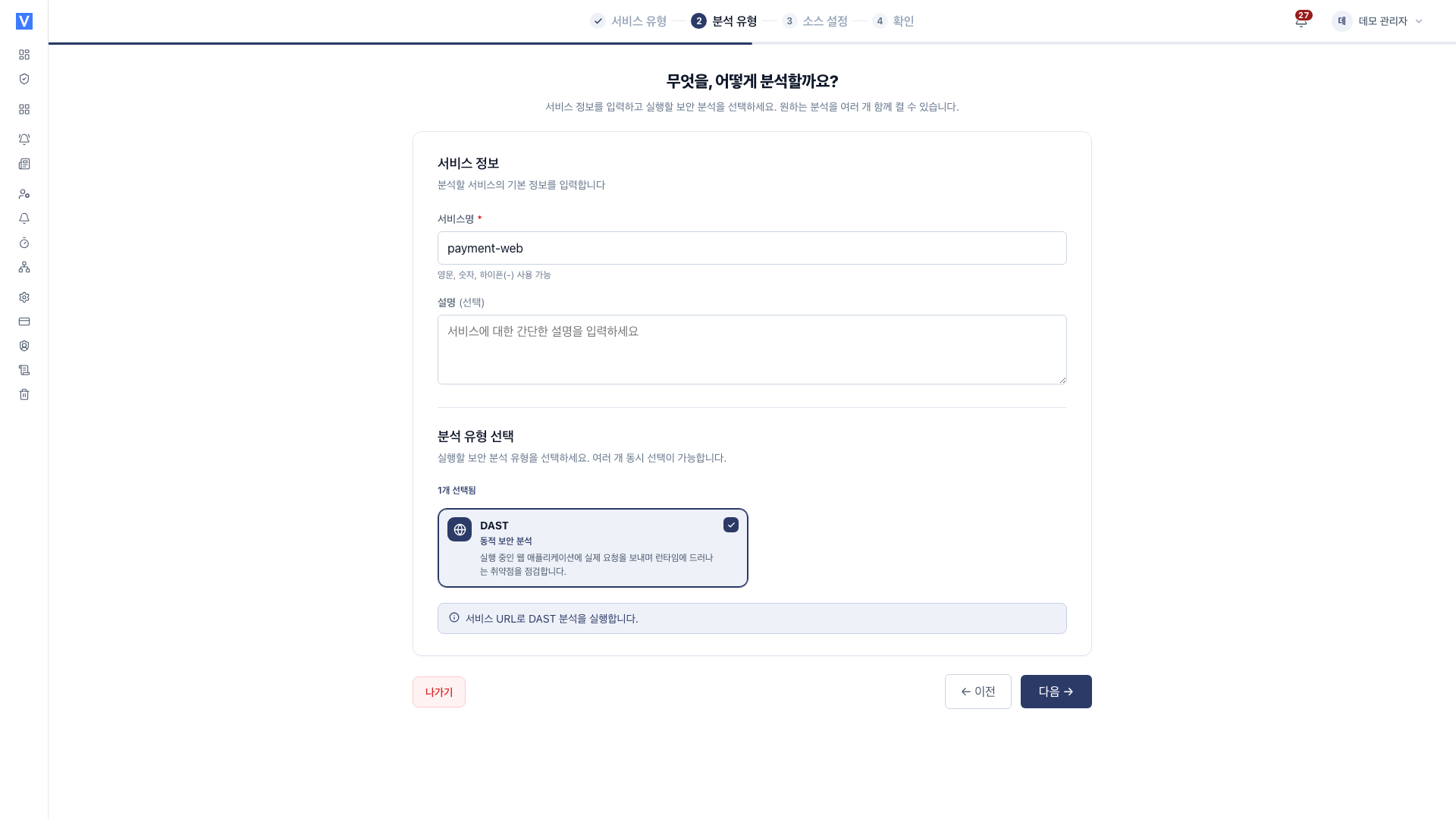
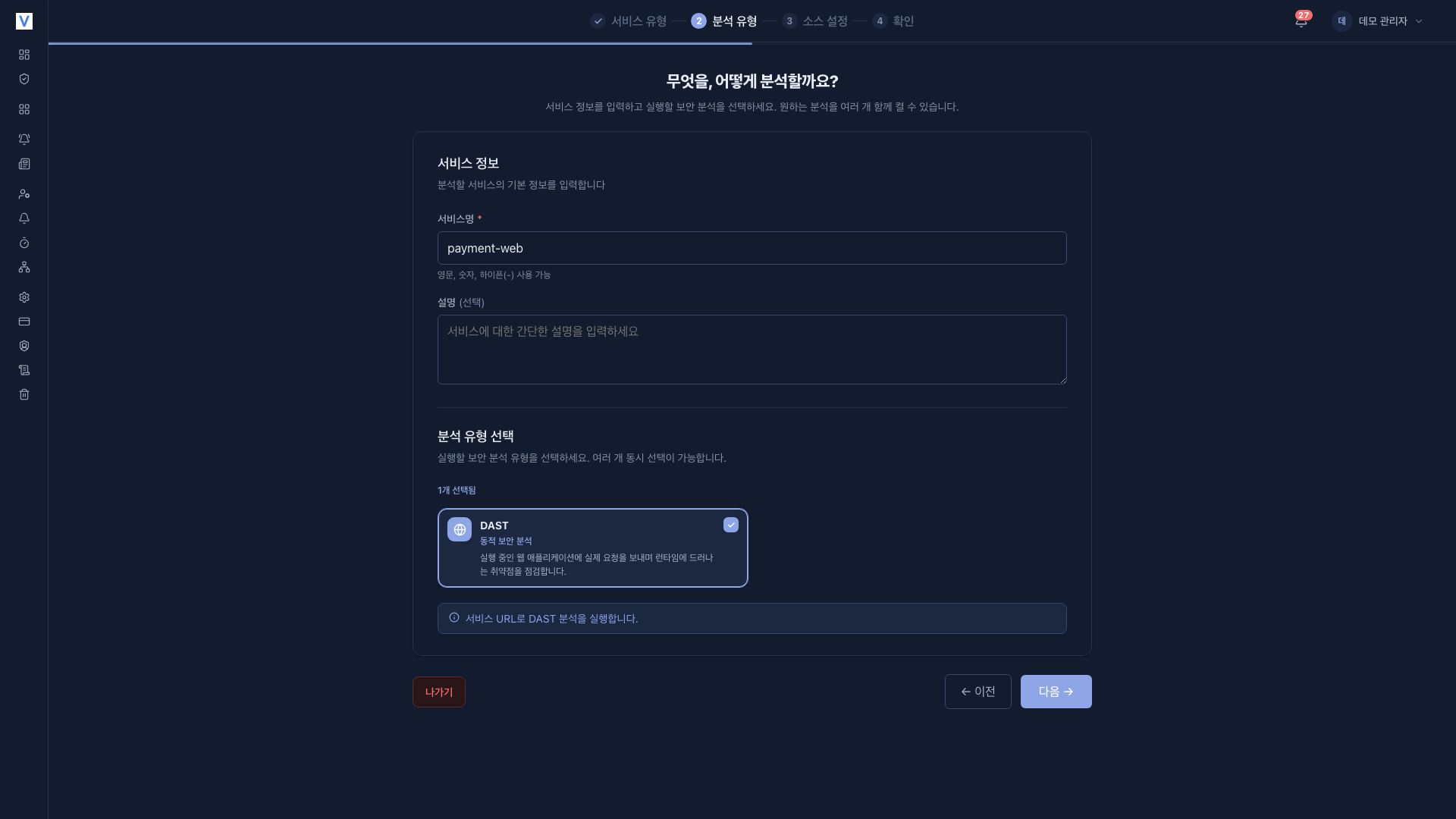
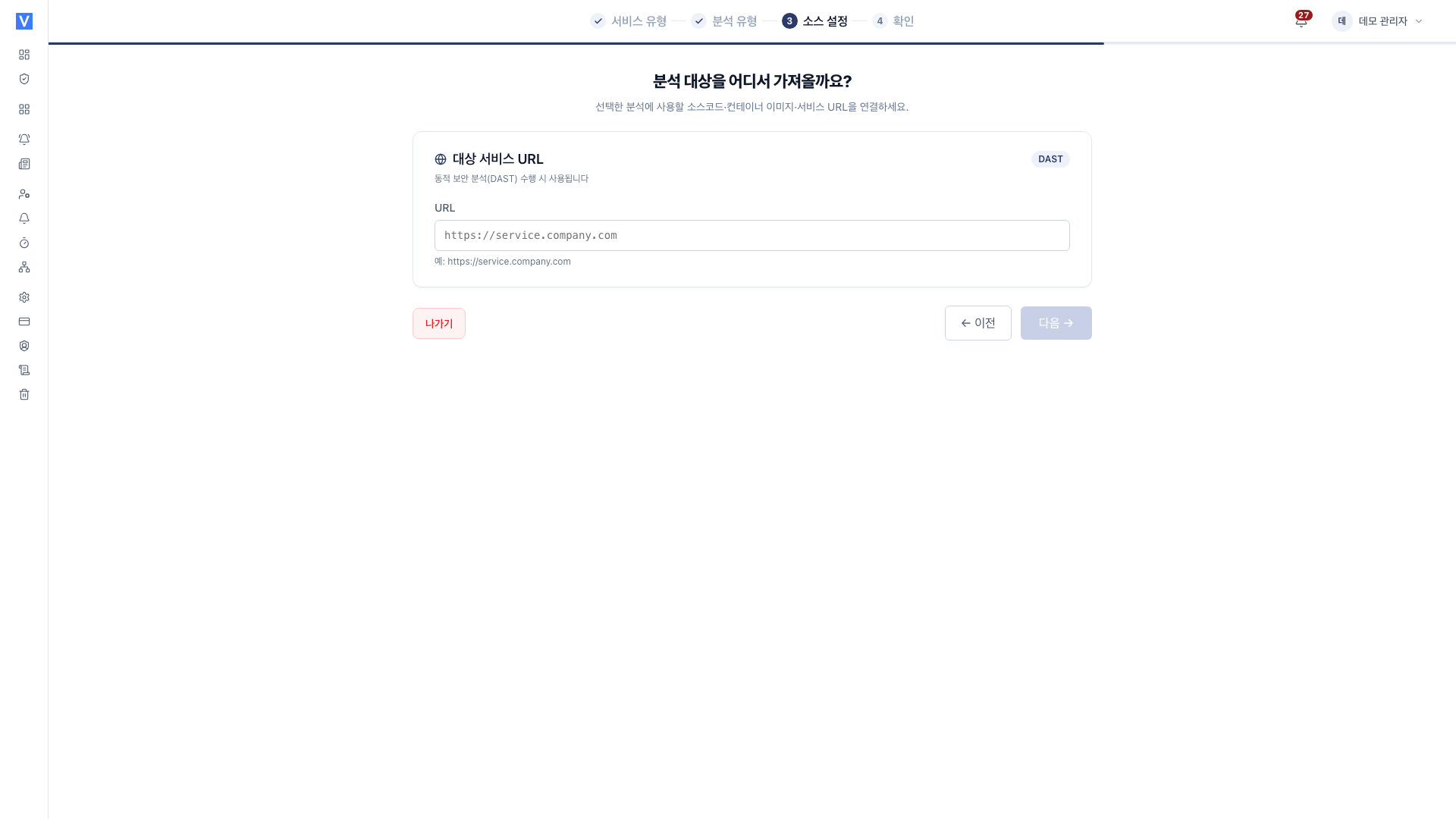
https://. http:// addresses are rejected ("DAST targets support https only.") and platform-reserved domains cannot be used ("This URL cannot be registered.").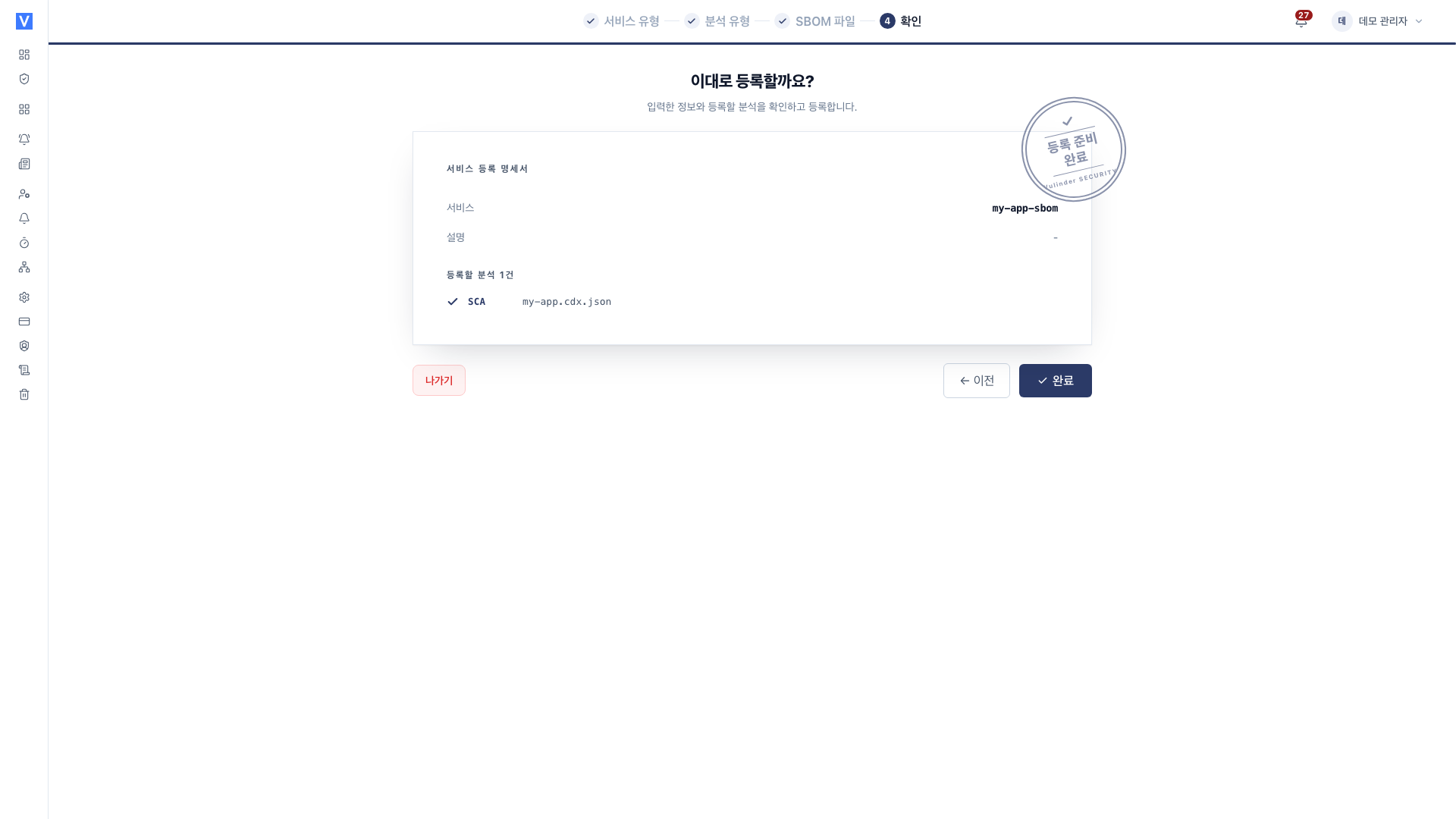
After registering, run DAST in the following order.
- Verify domain ownership in the service's [Settings] > Ownership verification with one of the methods under Ownership verification below. Until then, the DAST screen shows a notice that ownership verification is required.
- Once verification is complete, start the DAST scan with Run analysis.
What dynamic analysis (DAST) means
DAST (Dynamic Application Security Testing) finds vulnerabilities by sending real requests to a running web service and observing the responses. Unlike static source analysis (SAST), it inspects the application while it is actually running, from the outside, in the same way an attacker would.
This lets it catch issues that never show up in code alone, ones that appear only when deployment, configuration, and runtime come together. For example:
- Reverse proxy or framework defaults
- The real authentication flow
- Paths that are only open in the live environment
In return, the target must actually be running, and the inspection generates real traffic against it.
Ownership verification
Scanning an arbitrary URL risks attacking someone else's service or touching an internal network via SSRF. Vulinder does not allow free-form URL scanning and only targets verified domains. Ownership is re-verified live at scan time.
Prove domain ownership with one of the following. (Similar to the Google/Ahrefs methods)
- HTML file upload : Place the issued
vulinder_<token>.htmlfile at the site root. - Meta tag : Add the issued meta tag to the page
<head>. - DNS TXT : Add the issued TXT record to the domain DNS.
Vulnerabilities it finds
At a high level, it looks for the following classes of issues:
- Authentication / session management flaws : weak login or session handling, missing access control
- Security header / configuration issues : missing or misconfigured security headers, insecure defaults
- Injection-type issues : flaws where input is not handled safely, such as reflected injection
- Exposure of sensitive endpoints : admin/debug endpoints or information that should not be reachable from the outside
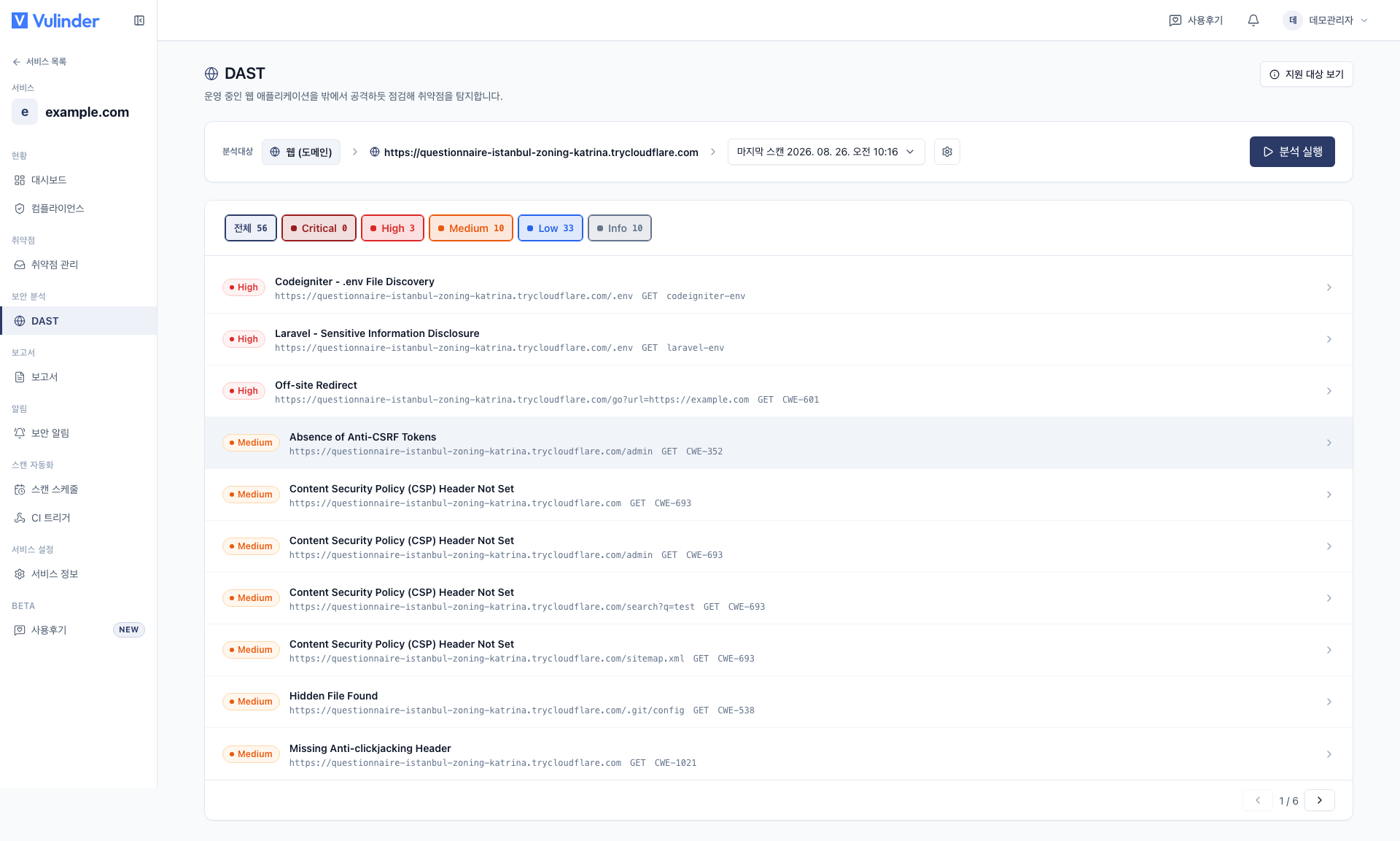
Severity is set per finding by the analysis results. Typical examples are:
- CRITICAL Authentication/session management flaws, exposed admin/debug paths
- HIGH Injection (reflected, etc.) and improper input handling
- MEDIUM Misconfigured security headers, information disclosure
Results from multiple checks are merged and shown as a single scan result.
DAST generates real traffic against the target. For a production service, run it during low-traffic hours, and if needed, target a staging environment instead.
Handling results
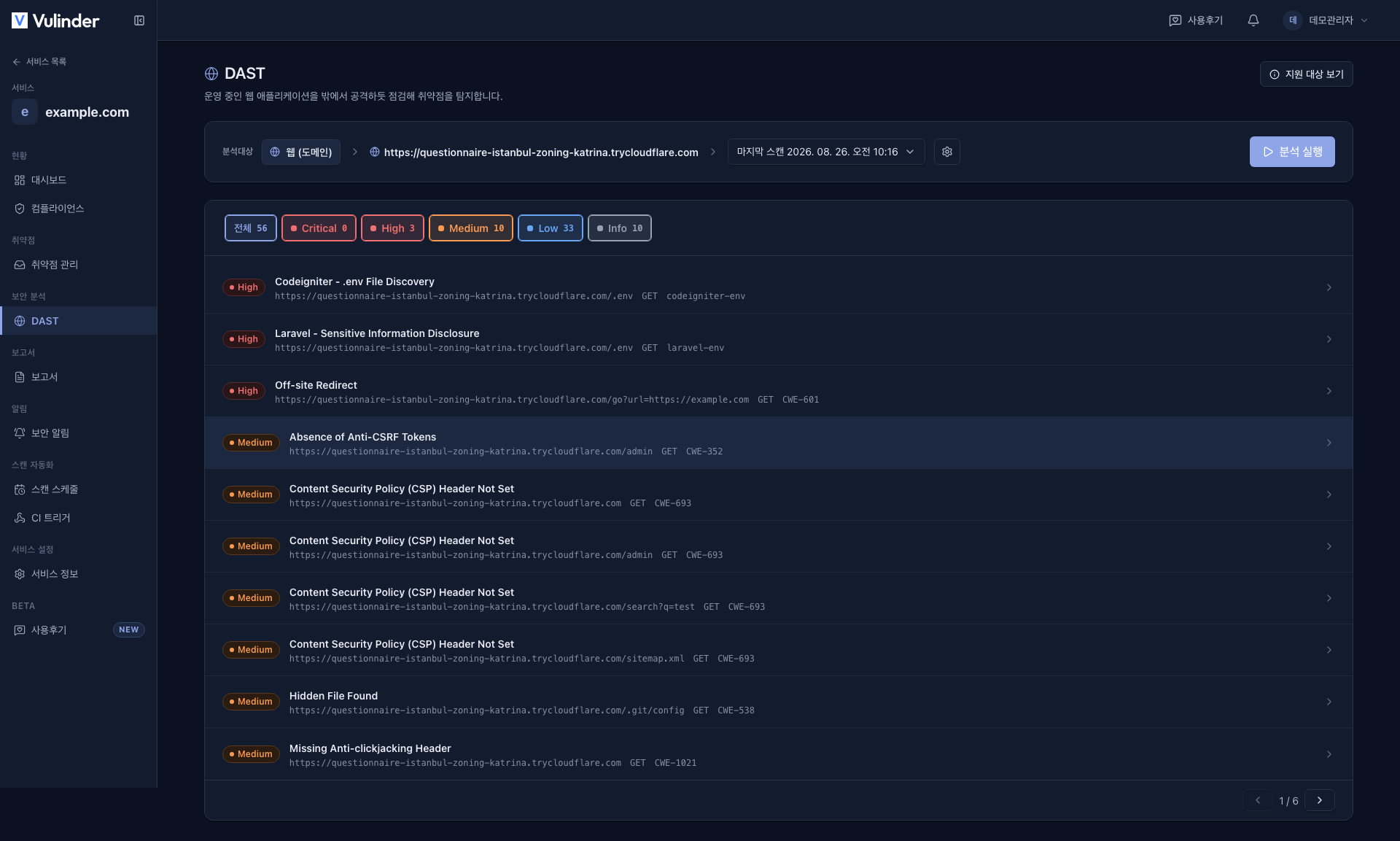
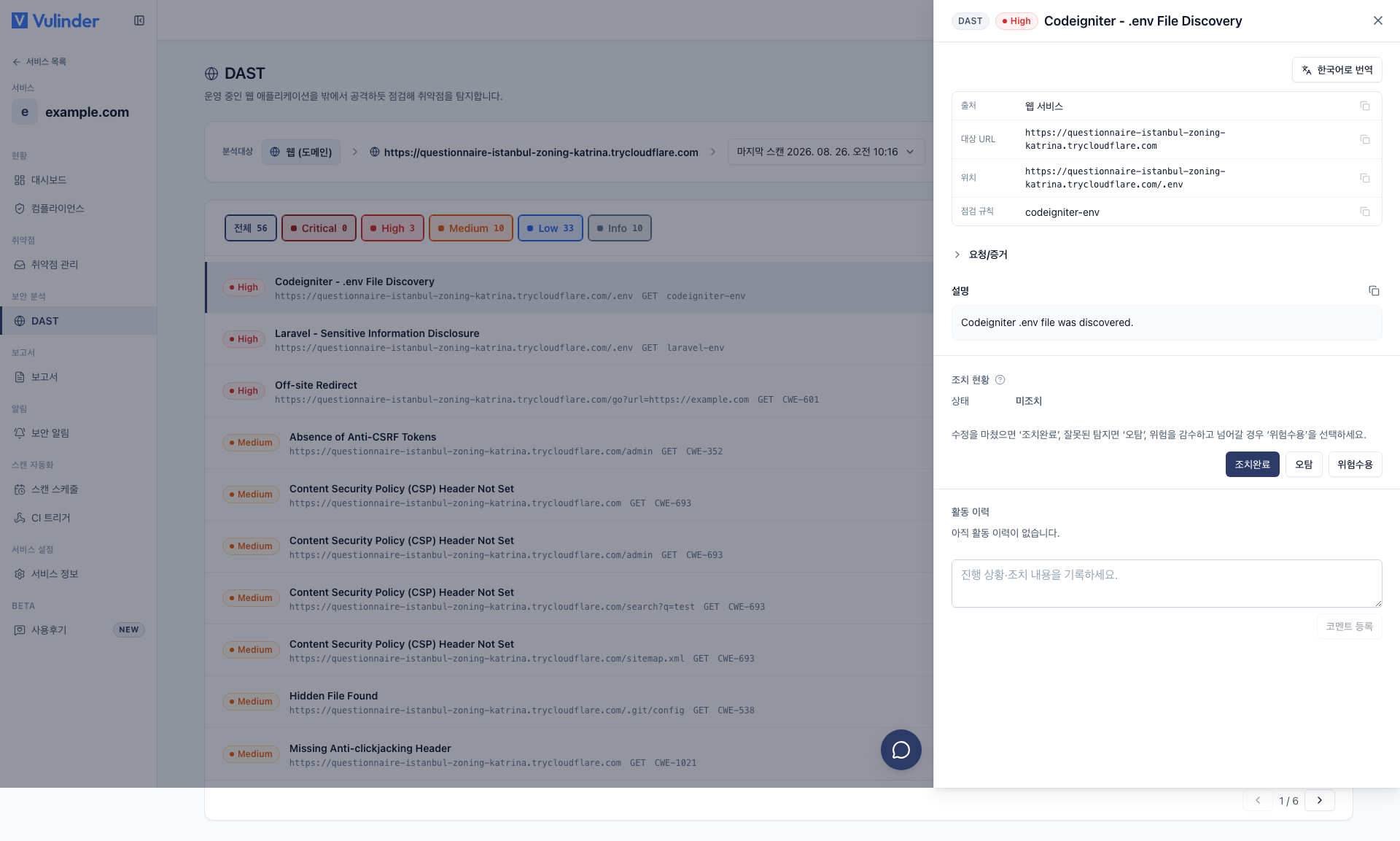
Findings are triaged in Vulnerability management just like other analyses.
Settings (changing after registration)
After registration, you can change settings under [Settings] in the service sidebar (changing the target URL and re-verifying domain ownership). Step-by-step instructions are in Web service settings.
Related documents
- Vulnerability management : Review and handle findings
- Compliance : Mapping against OWASP·CWE
- Reports : Export PDF reports
- Notification settings : Configure completion/finding alerts
- Web service settings : Change settings after registration