VPN profiles
A private network (VPN) access path for reaching servers and clusters inside an internal network that SSH cannot reach directly from the public internet. Instead of multi-hop SSH through a gateway (hop), you can enter the private network with a VPN profile issued by your organization and connect to the target.
- What : Private network (VPN) access profiles shared by the organization
- Used for : The path that SSH-based Host / Server analyses and K8s cluster checks use to reach targets in a private network
- Scope : Shared across the organization. Multiple server checks reuse the same profile
A VPN profile is not tied to a single service; it is shared by the whole organization. Once issued, checks for multiple servers and clusters in the private network use the same path. Any organization member can issue and manage profiles. (Members · roles)
Issue a profile
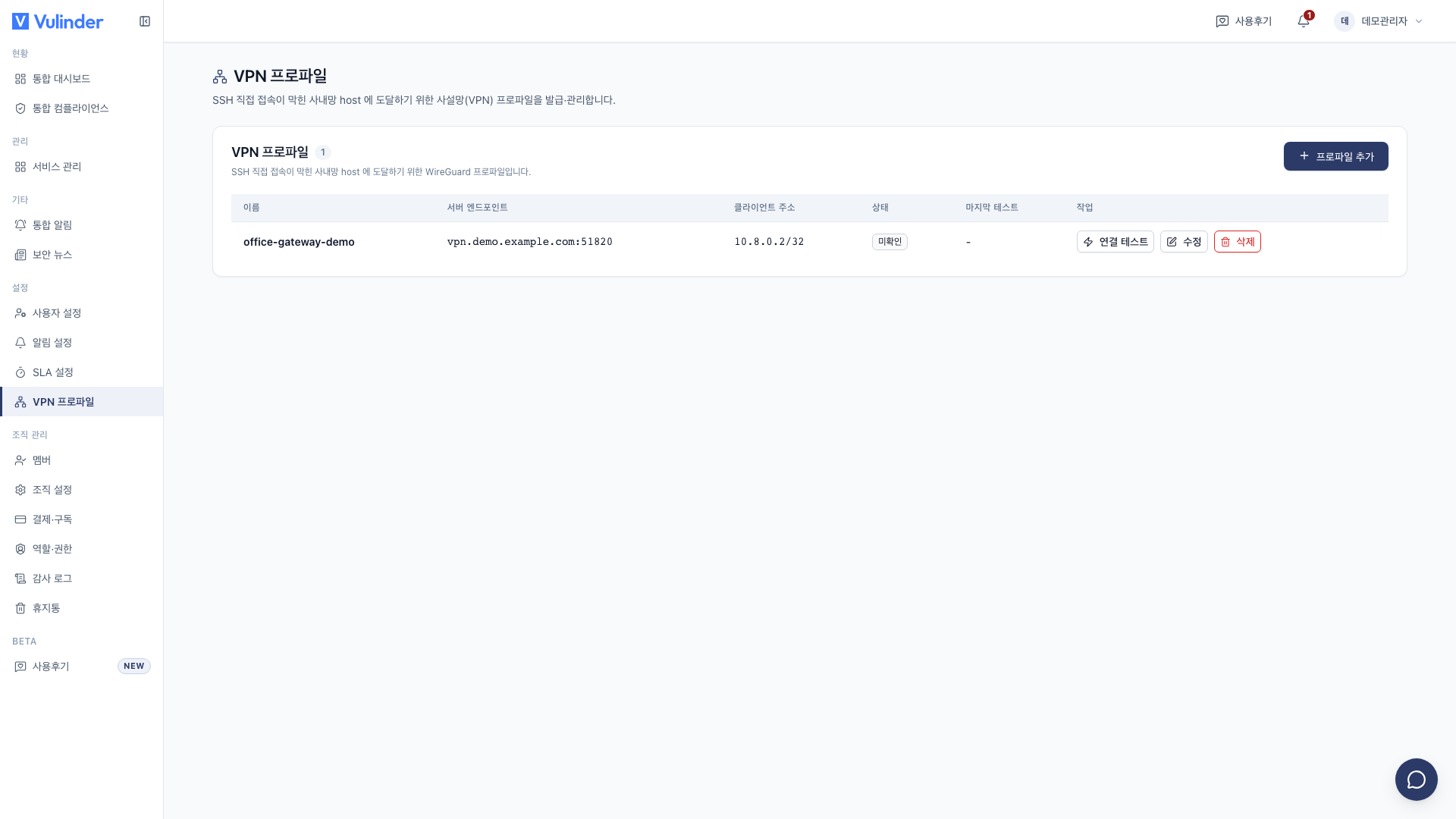
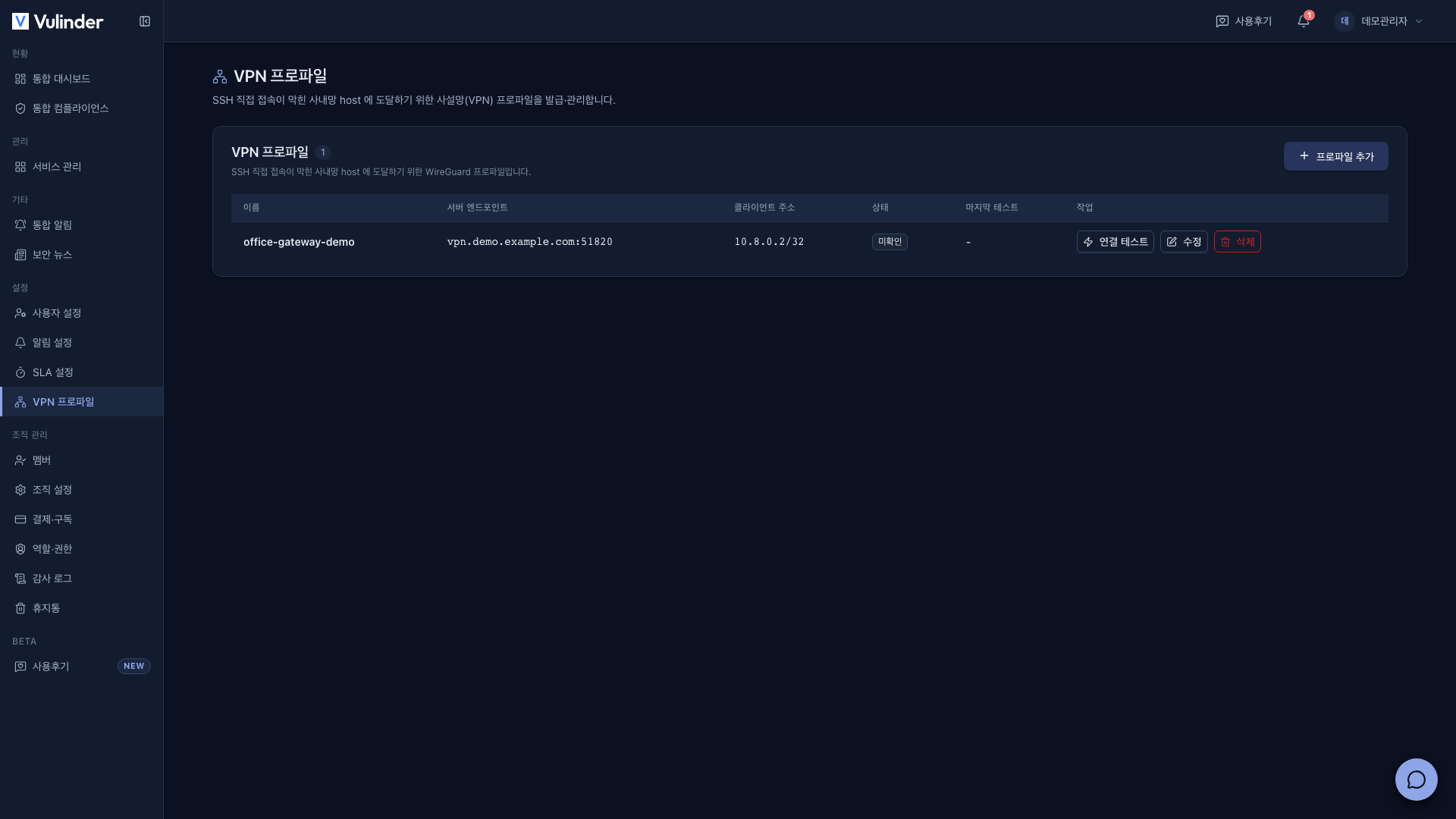
- Open the [VPN profiles] screen under [Settings].
- Click Add profile.
- Enter the following values. If you received a
.conffile, Paste .conf file fills them in at once (enter the name yourself).- Name : A display name that tells you which private network this is
- Server endpoint · Server port : The public address and port of the WG (WireGuard) server to connect to
- Server public key : The public key of the internal WG server
- Allowed IPs : Internal subnets to send through the tunnel (separate multiple values with commas)
- Client address : The IP (CIDR) this profile uses inside the tunnel
- Preshared key (PSK) · Keepalive (sec) : Optional.
- Prepare the client private key.
- Generate key pair : Click it to fill in the private key and client public key automatically.
- Enter directly : Paste a private key you already have, or fill it in by pasting a .conf file.
- Register the client public key as a peer on the WG server.
- Click Save. The private key is stored encrypted and is never shown on screen again.
Check the connection
For each issued profile you can check its status in the list and try a real connection.
- Use Test connection on each profile to confirm private network access (handshake).
- Status is shown as Connected, Connection failed, or Unknown.
- If the connection fails, check the server endpoint, firewall, and client address conflicts.
Use it for server checks
When you register or edit a host / server and choose VPN as the Verification method, it connects to the private network target through the profile you issued. Private Kubernetes clusters can use the same path for K8s cluster and CIS benchmark checks.
When you choose VPN, a gateway cannot be used at the same time. To change the verification method, see Server / host settings.
A profile used by a host cannot be deleted. Change that host's verification method first, then delete the profile.
Related docs
- Host / Server overview : Registration steps
- Server / host settings : Change the verification method (SSH · VPN)
- K8s cluster · CIS benchmark : Private cluster connection and infrastructure configuration checks
- Members · roles : Permissions to manage profiles