Billing
Manage your organization's plan, payments, and scan usage on the [Organization] > [Billing] screen. Plans differ by scan usage (VU) limit and member seat count; the analysis features themselves are all available regardless of plan.
Permissions by role are as follows.
- Admin : Can change the plan and pay.
- Manager : Read-only access.
- Member : The menu is not shown.
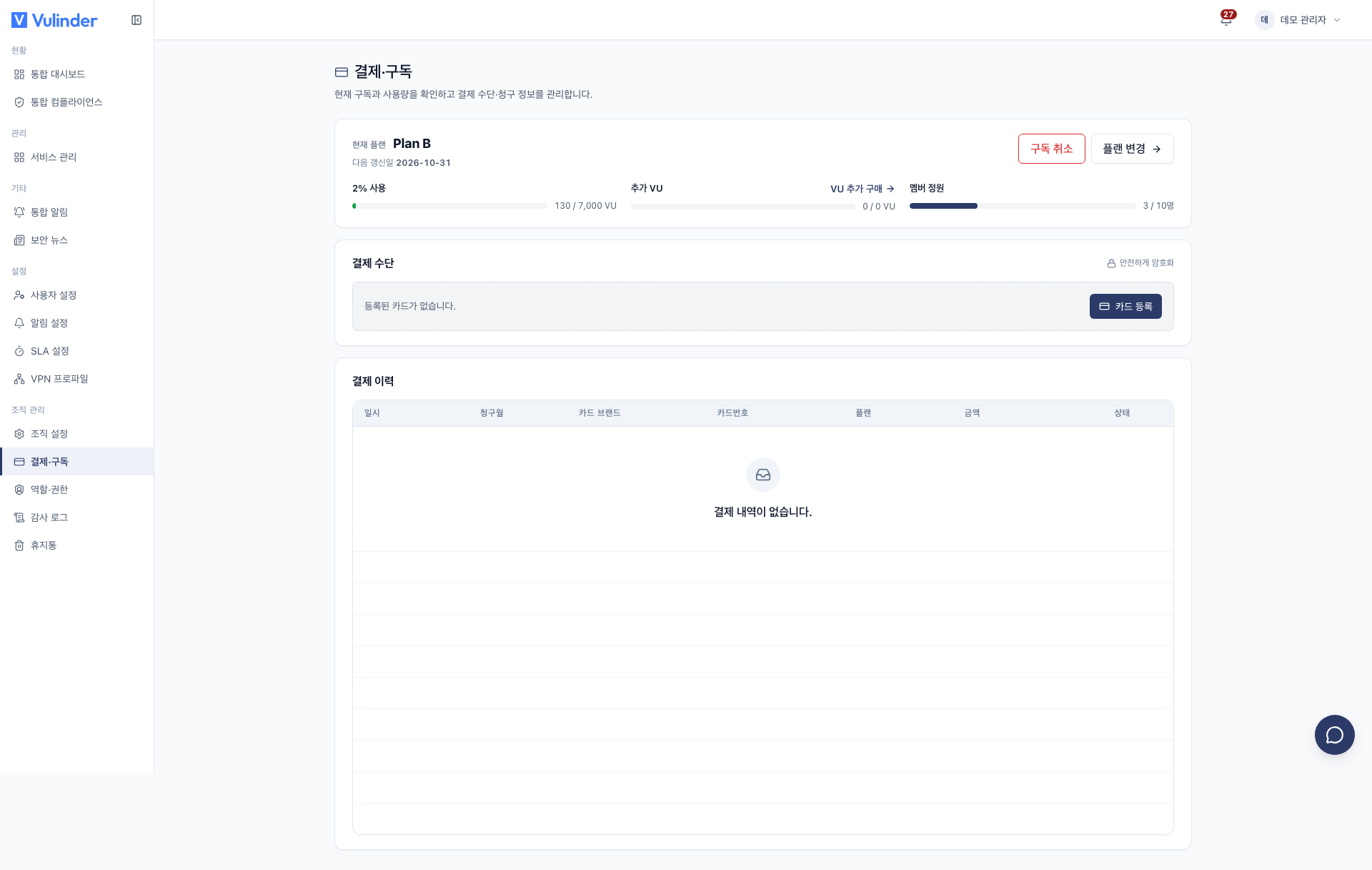
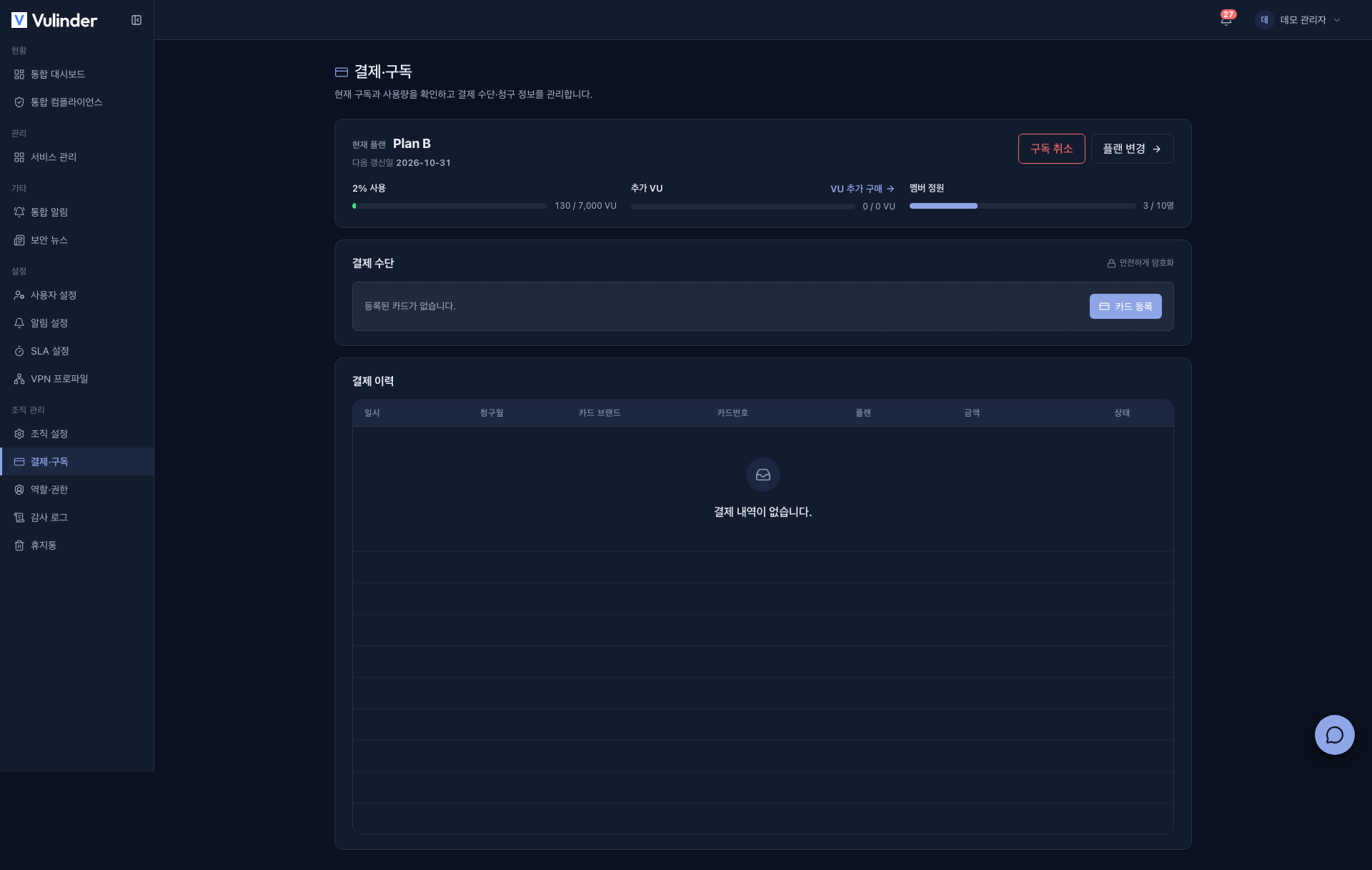
The screen is made up of the following.
- Current plan : Shows the plan name and Next renewal date. If a cancellation is scheduled, Cancels on is shown instead.
- Usage : Bars show the VU used this month against the plan limit, the additional VU you bought, and member seats (current members / seat count).
- Payment method : Register, change, or delete the card used for automatic payment.
- Billing history : Shows the date, billing month, card brand, card number, plan, amount, and status. The status is one of Paid · Pending · Failed · Verifying · Canceled · Partially refunded.
For on-premises or large-scale deployment quotes, use Contact.
Plans
- Seat (member count) limit : Based on the total number of members, including the admin. Inviting or joining beyond the limit is blocked.
- Scan usage (VU) limit : Each plan sets a monthly VU limit. VU is deducted every time a scan runs.
- Buy more VU : If you run short of VU this month, buy a one-time pack (purchased VU).
Changing plans (upgrade)
- Click Change plan to open the checkout screen.
- On the plan card you want, click Select.
- Check the payment method (card) and billing information (tax invoice), tick the payment agreement, and click Pay (amount) and upgrade.
- For a first subscription, the button is Pay (amount) and start subscription.
Upgrades apply immediately, and only the prorated difference for the rest of the current billing period is charged.
Only admins can change the plan and pay. Managers do not see Change plan. If they open the checkout screen URL directly, "Only organization admins can change billing." appears.
Downgrade
Choosing a lower plan takes effect from the next billing cycle. Until then, you keep using your current plan.
- In Change plan, select a plan lower than your current one.
- In the Order summary on the right, check the plans for the current and next cycles and the date the change applies.
- Tick the payment agreement and click Confirm (plan name) plan.
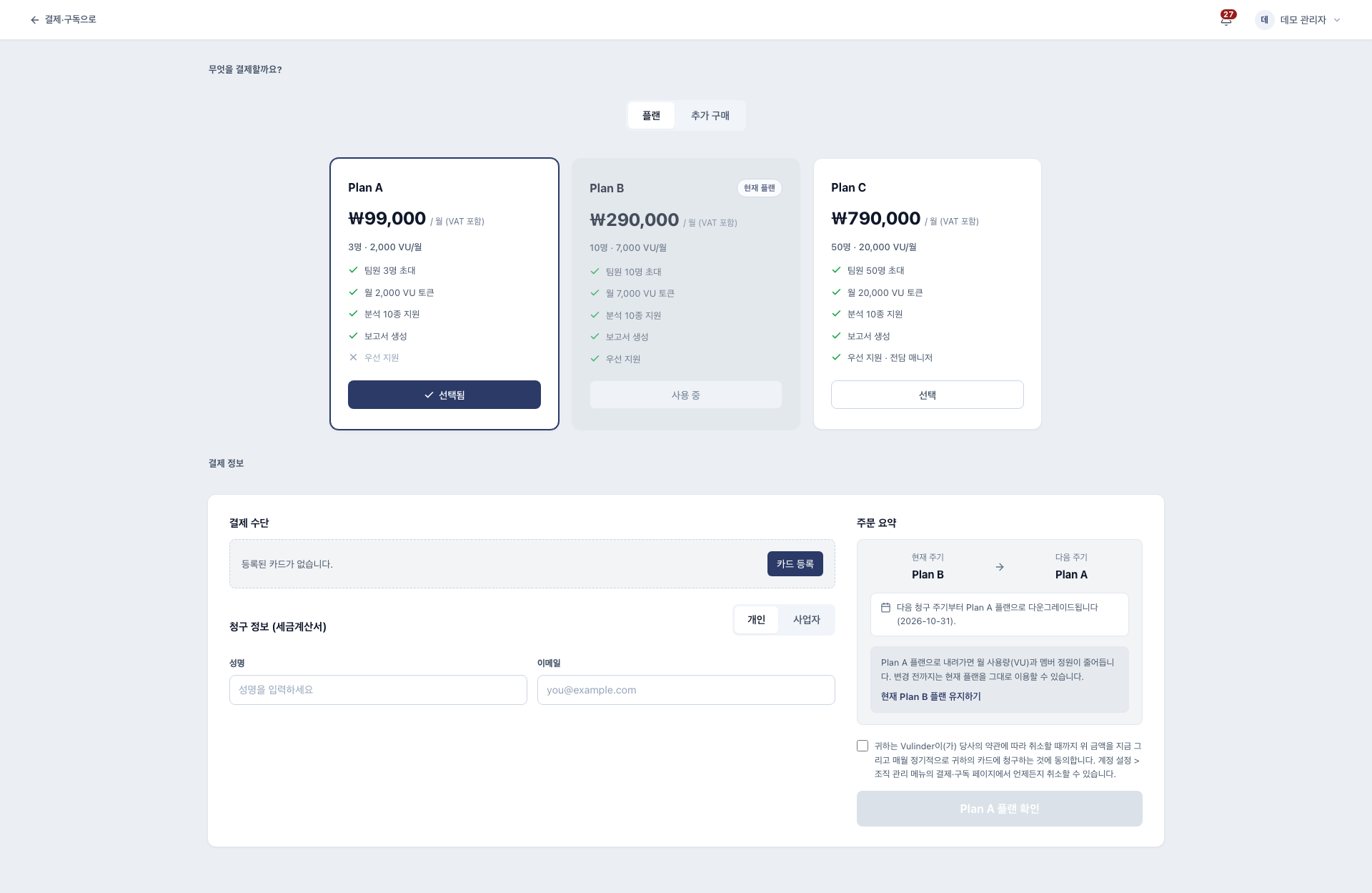
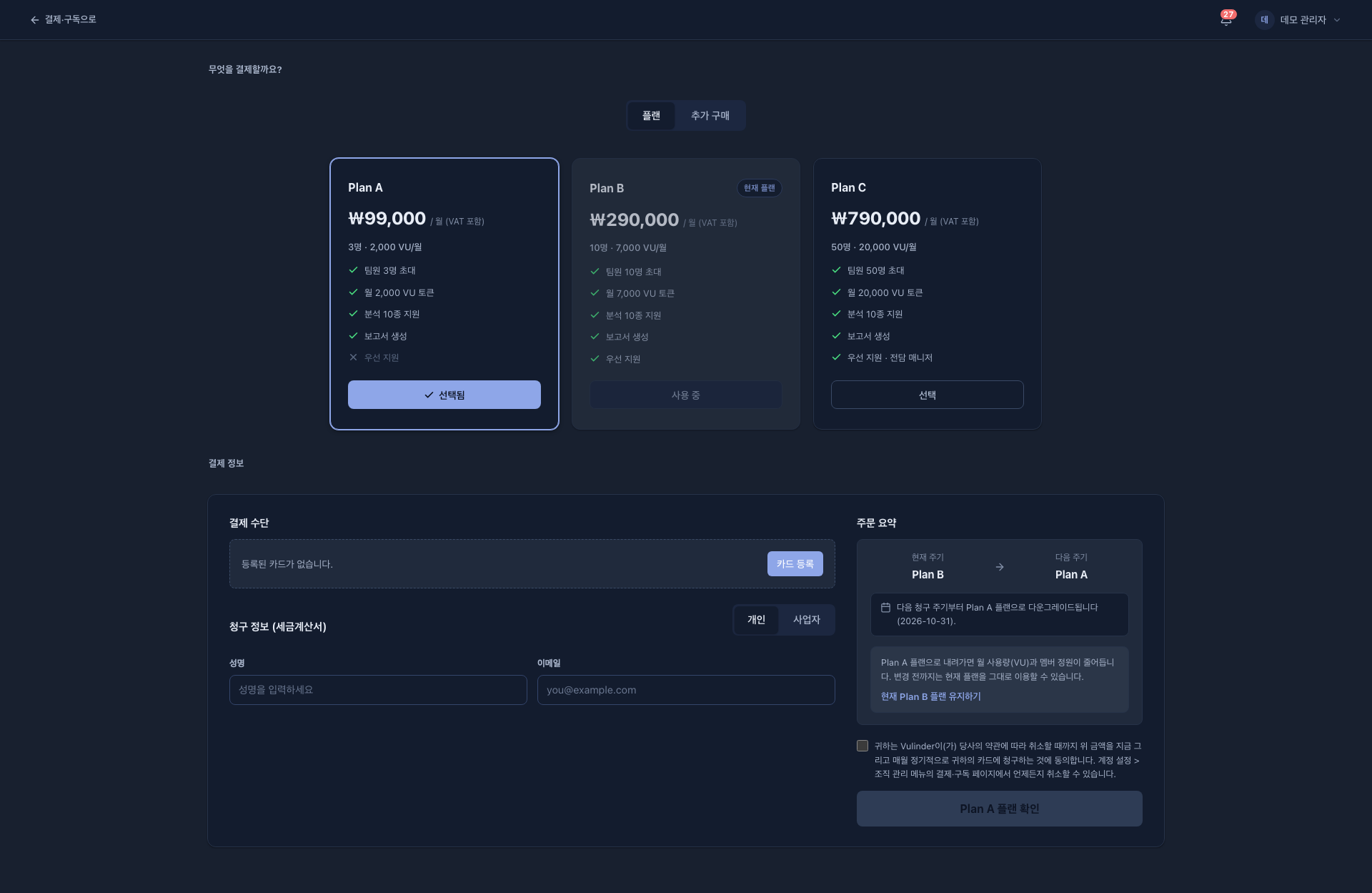
A lower plan has less monthly VU and fewer member seats.
- Before downgrading : If your current member count exceeds the new plan's seat count, you cannot downgrade. Reduce members first.
- When seats shrink : If seats shrink because of a refund, a failed payment, or an expired period and the member count goes over the limit, members other than the admin are restricted (Members · Roles).
A scheduled downgrade appears at the top of the screen as "Scheduled downgrade to (plan)". Click Cancel downgrade and "The scheduled change was canceled. Your current plan continues." appears.
Cancel subscription
Admins of organizations on a paid plan see Cancel subscription. It is not shown if a cancellation or plan change is already scheduled.
- Click Cancel subscription.
- In the confirmation dialog, click Cancel subscription once more. To back out, click Keep.
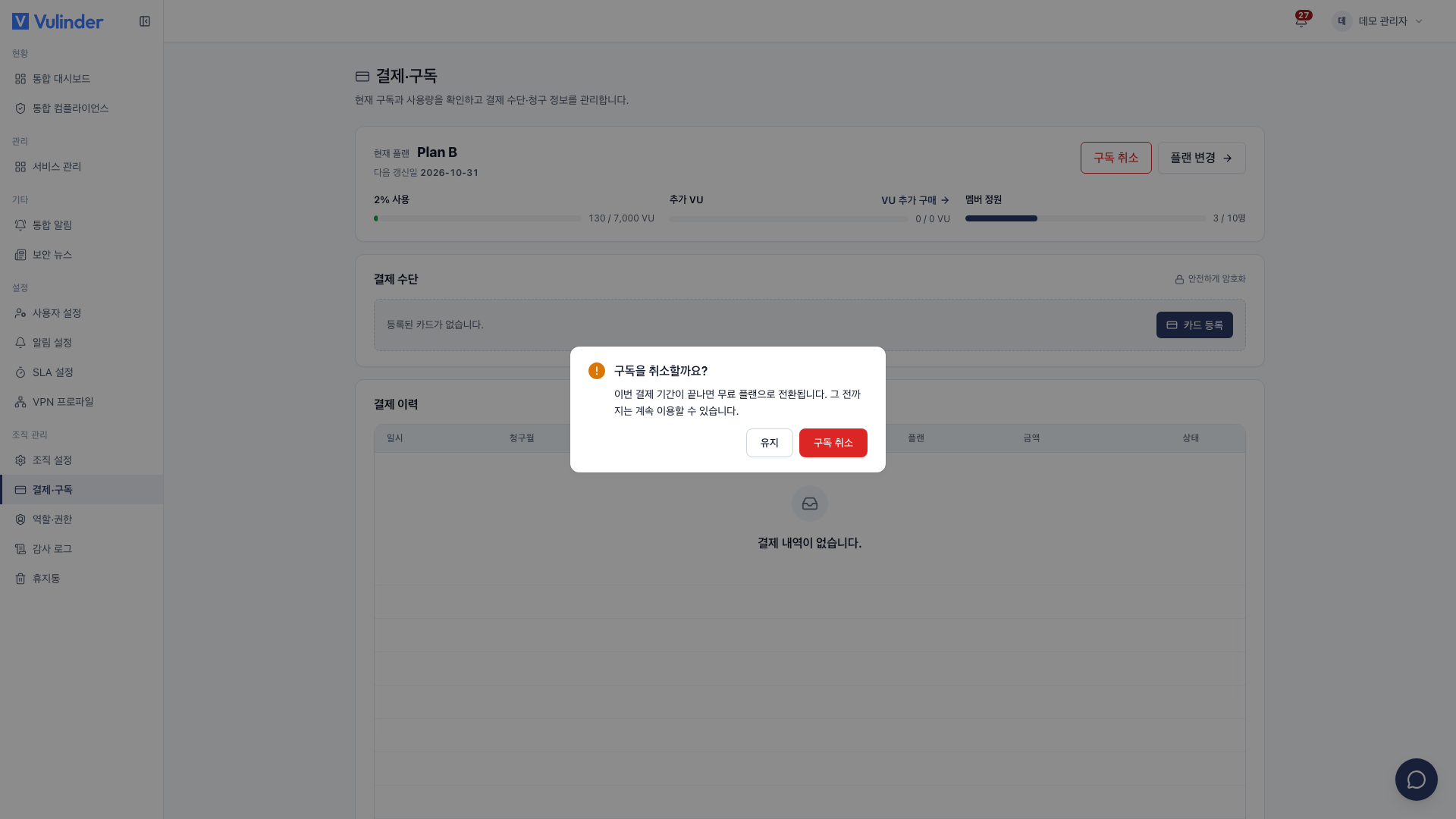
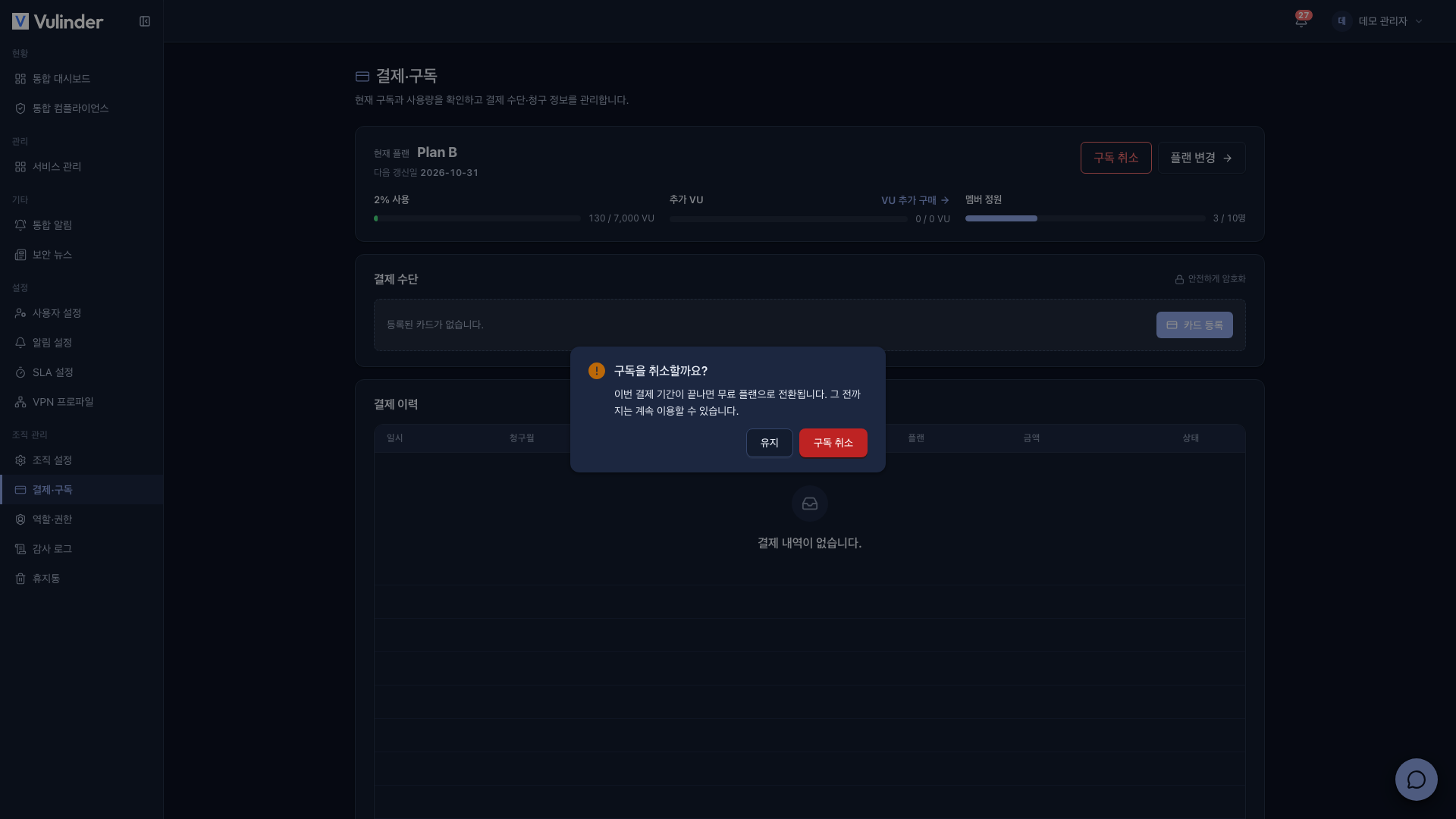
If your current member count exceeds the Free plan's seat count, you cannot cancel the subscription. Reduce members first.
After cancelling, you switch to the Free plan on the day the current billing period ends. Until then the screen shows Cancels on and "Scheduled downgrade to Free", and you can undo the cancellation with Cancel downgrade.
Payment method
- Manage the automatic payment card with Register card · Change card.
- The full card number is not stored; only the billing key issued by the payment processor and the card brand and last four digits are kept.
- If you delete the card, the next recurring payment fails and the service may be interrupted. To keep using it, register a new card first.
- If automatic payment fails, the service stays active during a grace period and payment is retried automatically. Check your card or register a new one in the meantime.
Refunds
There is no refund button on the screen. Refunds are processed automatically in the following cases.
- When the admin leaves (deletes) the organization, unused purchased VU is converted to an amount and refunded. Subscription VU stays usable until the end of the current billing period and is then cancelled.
- When the admin of an organization they use alone deletes their account and the recovery period ends, the same rules apply.
- Managers or members leaving an organization does not trigger a refund.
A refunded payment's status in the billing history changes to Canceled (full refund) or Partially refunded (partial). For the detailed conditions, see Leaving · Restoring. For other refund questions, use Contact.
Related documents
- Members · Roles : Seat limits and member management
- Leaving · Restoring : VU and refunds when deleting an organization or account
- Contact : On-premises and large-scale deployment quotes