Leaving · Restoring
Before you leave an organization or delete your account, check what stays and what goes away. There are two kinds of leaving, Leave organization and Delete account, and the result depends on your role (admin / manager · member).
| Type | Where | Result |
|---|---|---|
| Leave organization (manager · member) | Leave organization at the bottom of [Account settings] | Only you leave the organization. The organization and your account remain. |
| Leave organization (admin) | Leave organization at the bottom of [Organization settings] | The organization is deleted immediately and this cannot be undone. Your account remains. Possible only when you are the only member. |
| Delete account | Delete account at the bottom of [Account settings] | Your account is deactivated. Personal information is erased after the recovery period. |
Leave organization (manager · member)
Leave the organization you currently belong to. The organization, its other members, and your account stay as they are.
- Click your name at the top right of the screen and go to [Account settings].
- Click Leave organization at the bottom of the screen.
- Type your account email in the field of the confirmation dialog and click Leave organization.
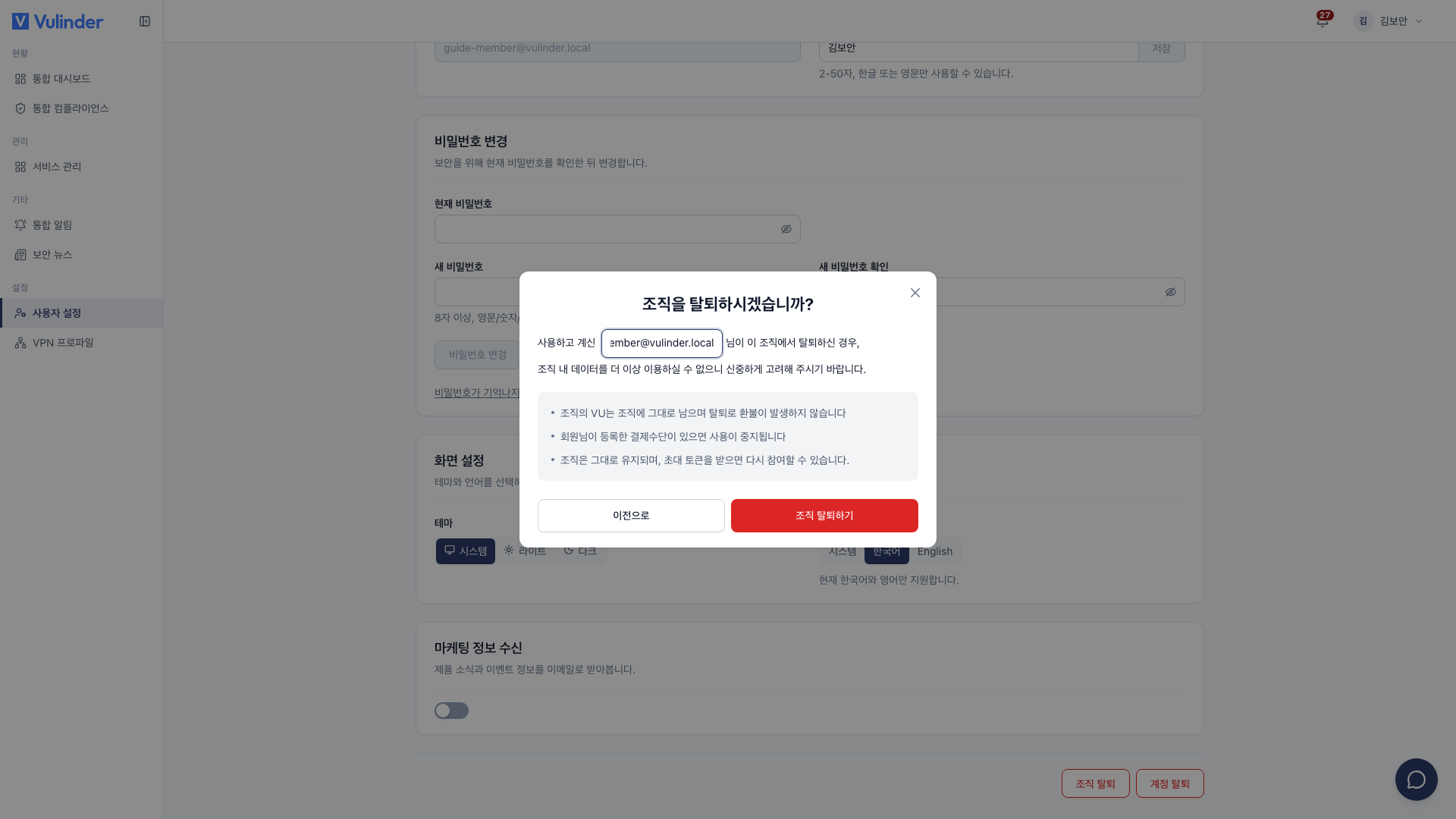
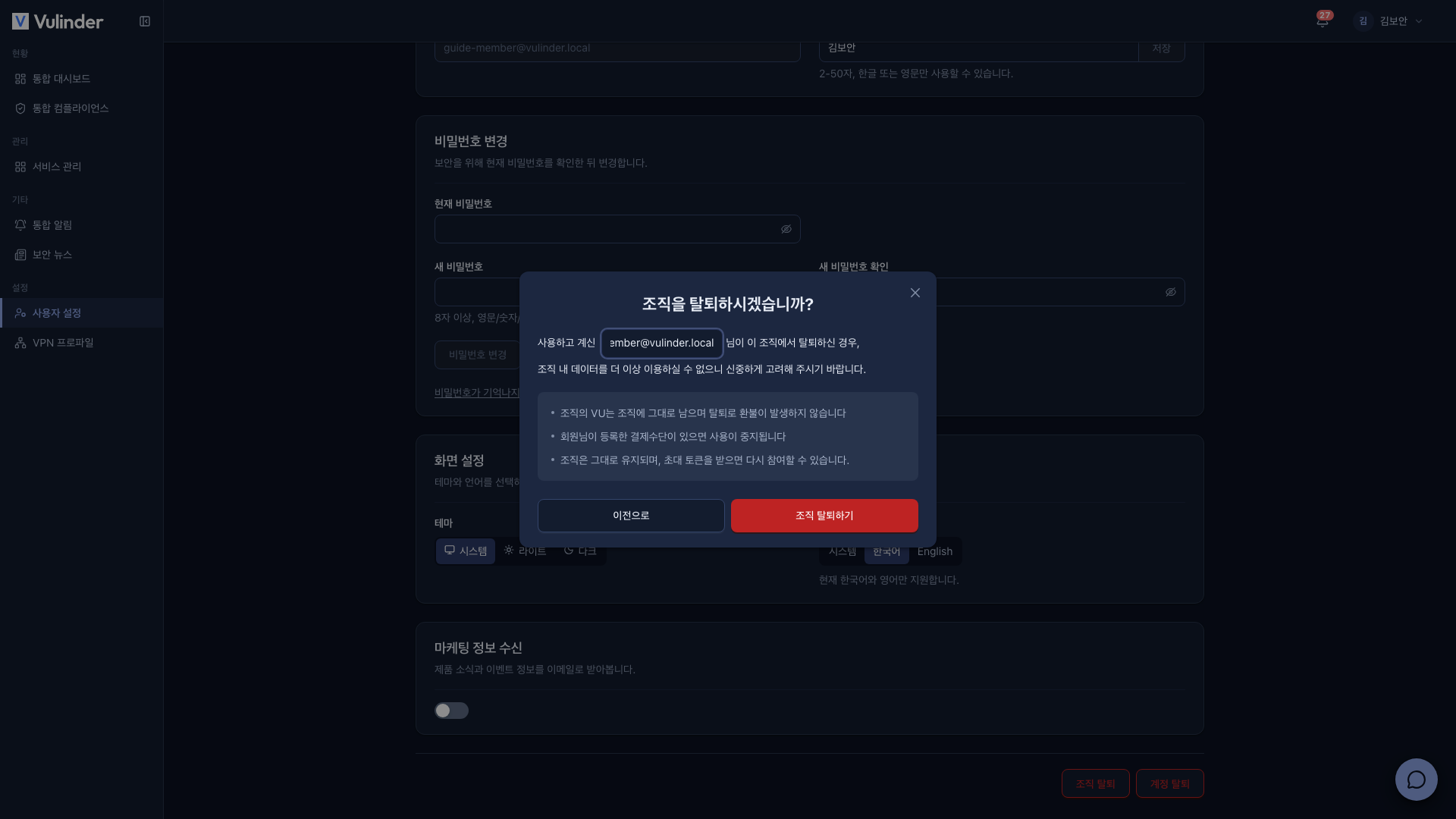
- The organization keeps its VU, and your leaving triggers no refund.
- Any payment method you registered stops being used.
- After leaving, you are signed out and taken to the Join an organization screen. With an invite token, you can rejoin the same organization or join another one.
Leave organization (admin)
When the admin leaves the organization, the organization is deleted. If other members remain, the button is disabled and "Remove all other members before leaving the organization." is shown. First remove all other members from the member list in [Organization settings].
- Go to [Organization] > [Organization settings].
- Click Leave organization at the bottom of the screen.
- Read the notice in the confirmation dialog, type your account email, and click Leave organization.
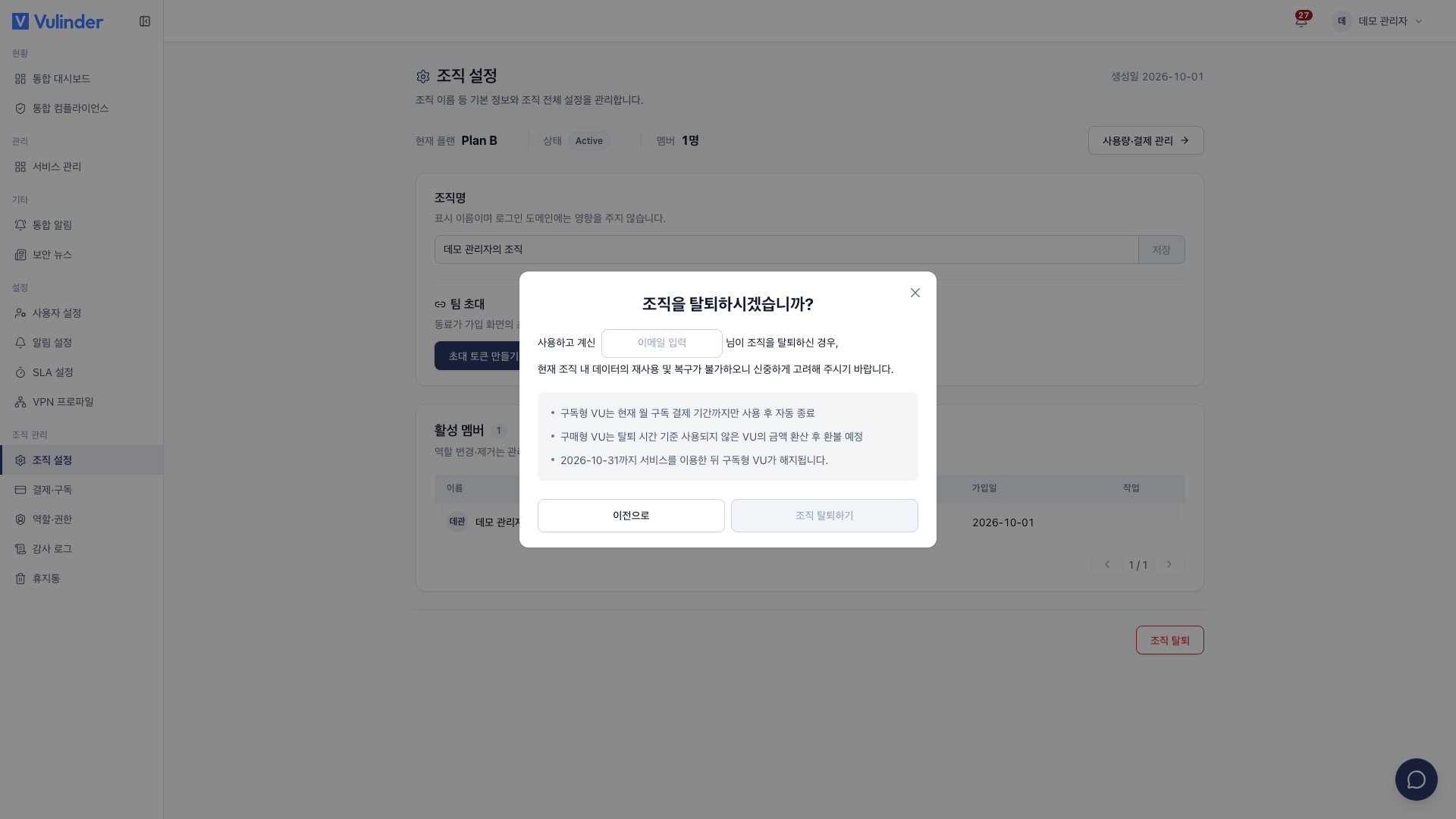
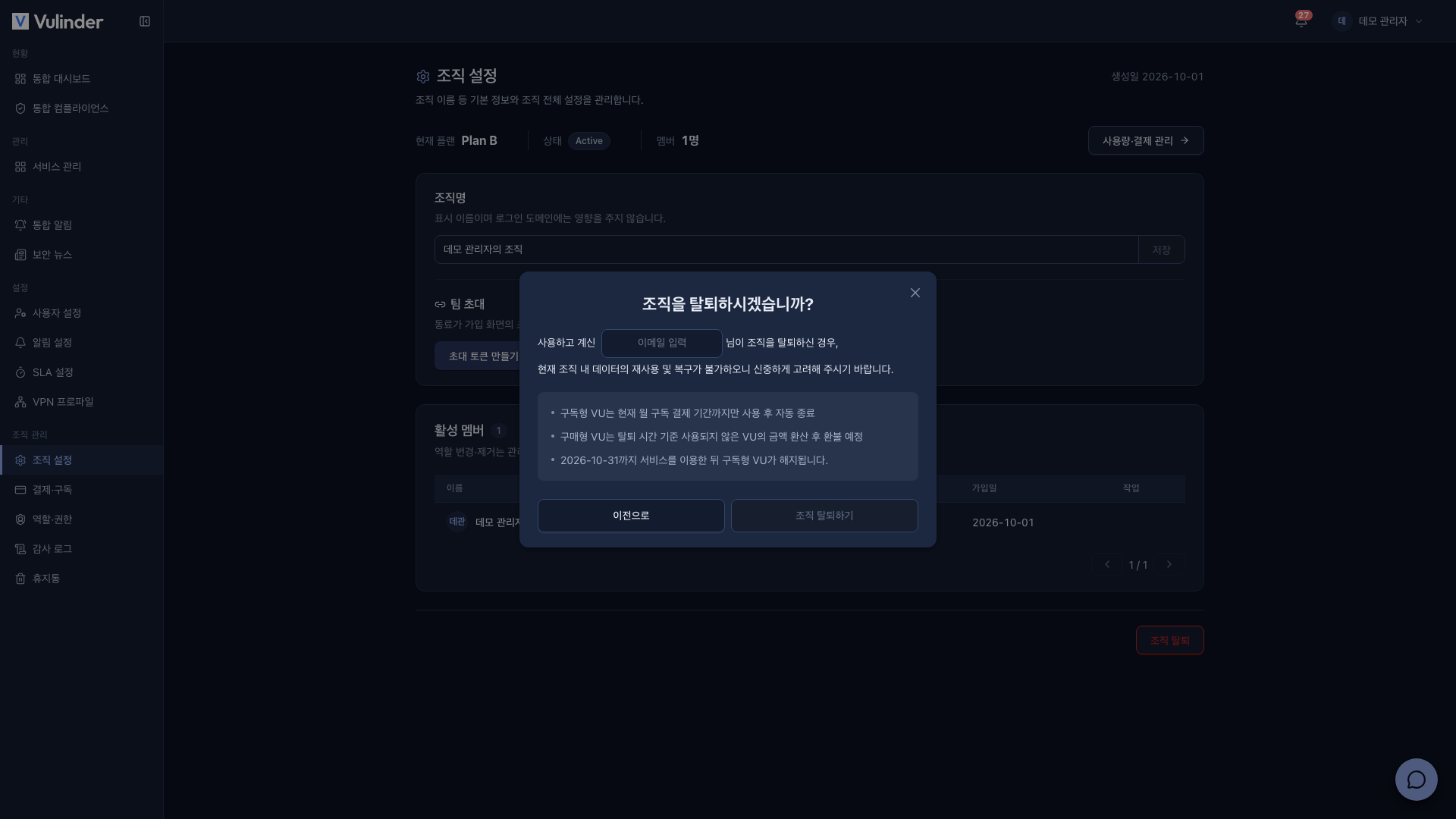
- This cannot be undone : Deleting the organization takes effect immediately, with no trash or recovery period, and the organization's services and analysis data are destroyed.
- Notice email : The result is sent to you by email.
- Subscription VU : Usable until the end of the current monthly billing period, then cancelled automatically. The dialog shows the date as "You can use the service until (date), then subscription VU ends."
- Purchased VU : VU unused at the time you leave is converted to an amount and refunded.
- Your account remains. You are signed out after leaving, and you can join another organization with an invite token or create a new one.
Delete account
This deactivates your account. Within the recovery period (shown in days in the confirmation dialog, currently 30 days) you can sign in again to restore it. After the period ends, personal information is erased and the account cannot be restored.
The admin of an organization that still has other members cannot delete their account. If the dialog shows "Remove all other members before deleting your account.", remove the members first.
- Click Delete account at the bottom of [Account settings].
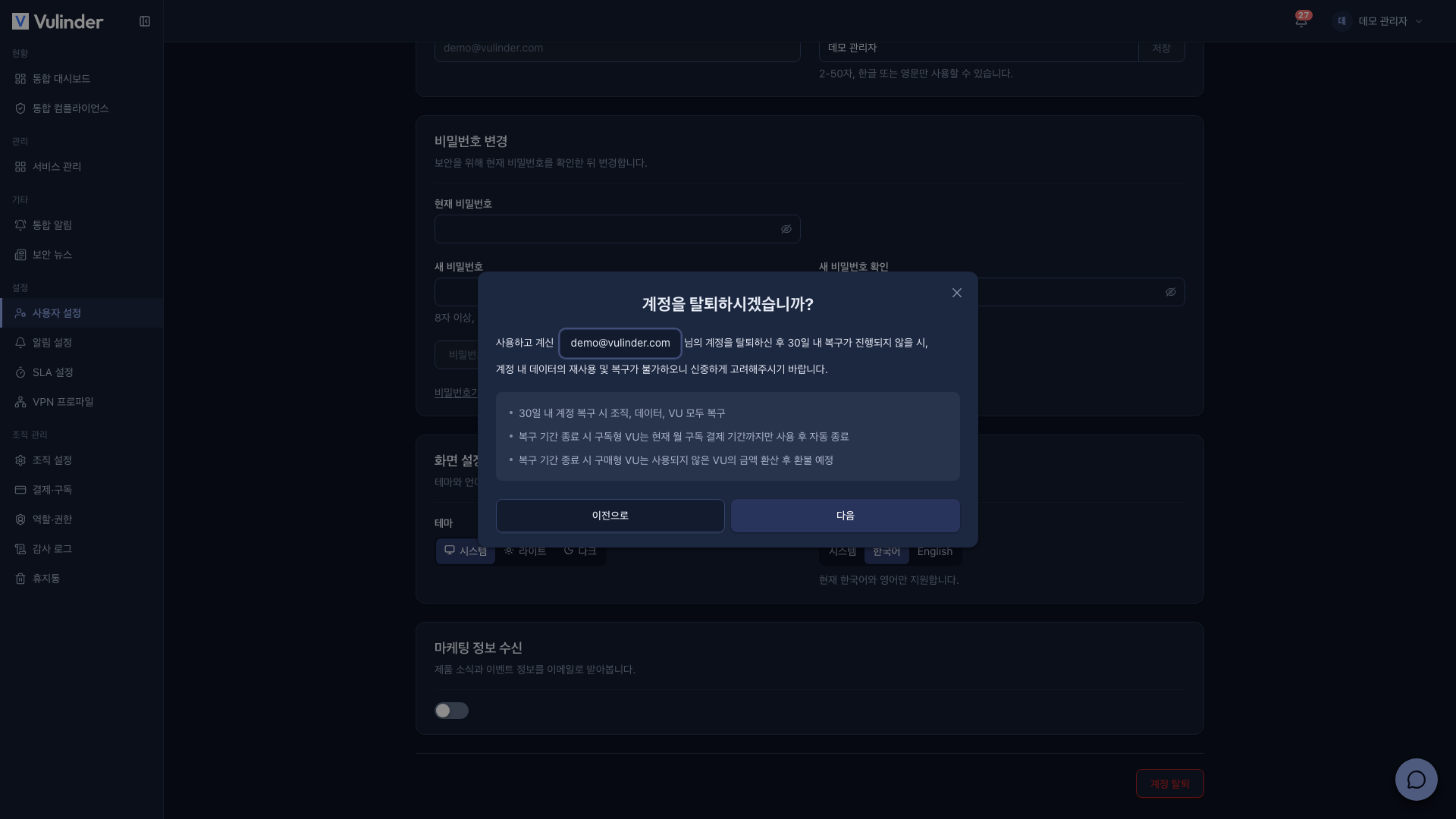
- Step 1 : Type your account email in the field of the confirmation dialog, review the notice below it (recovery period and VU handling), and click Next.
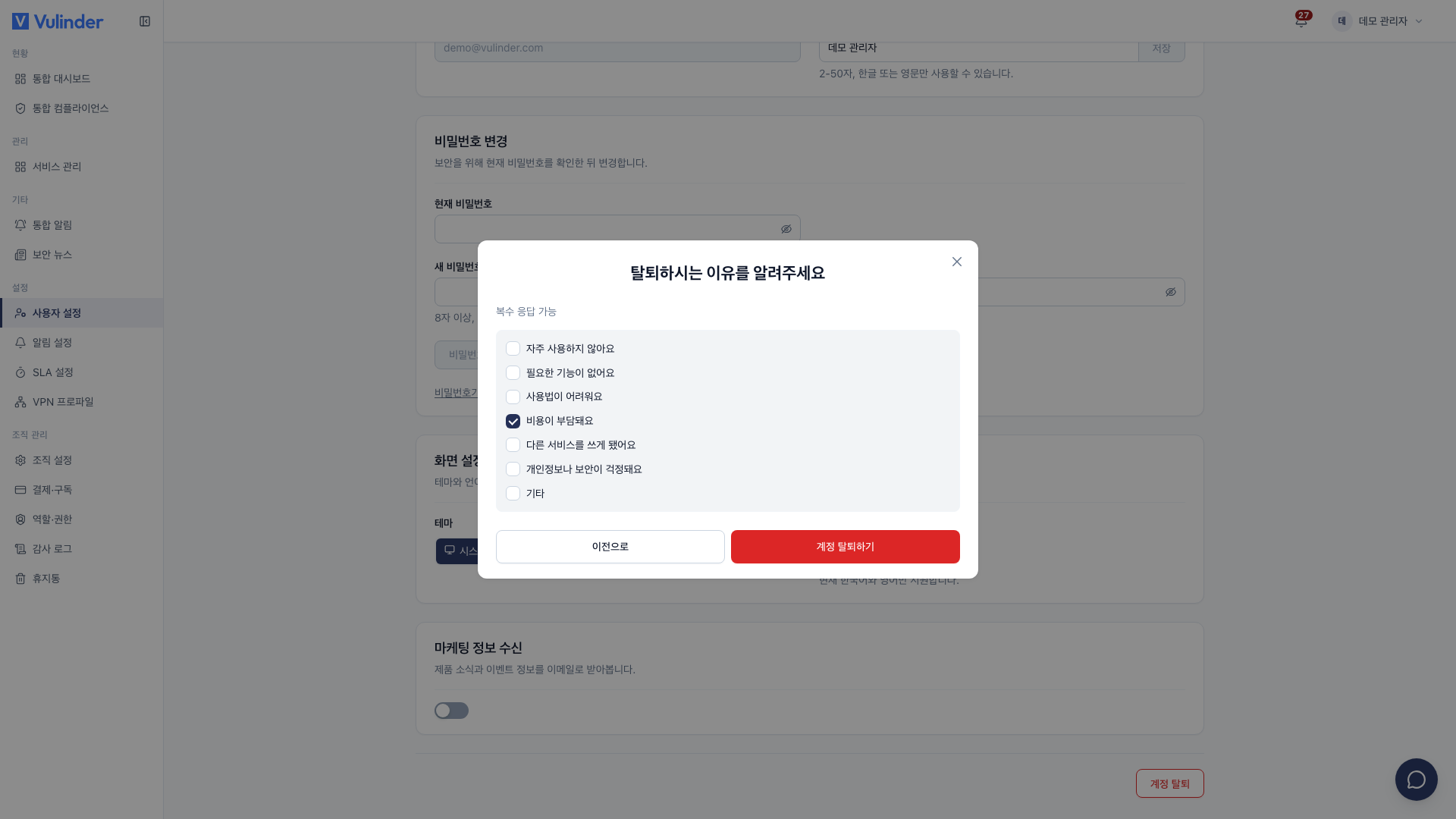
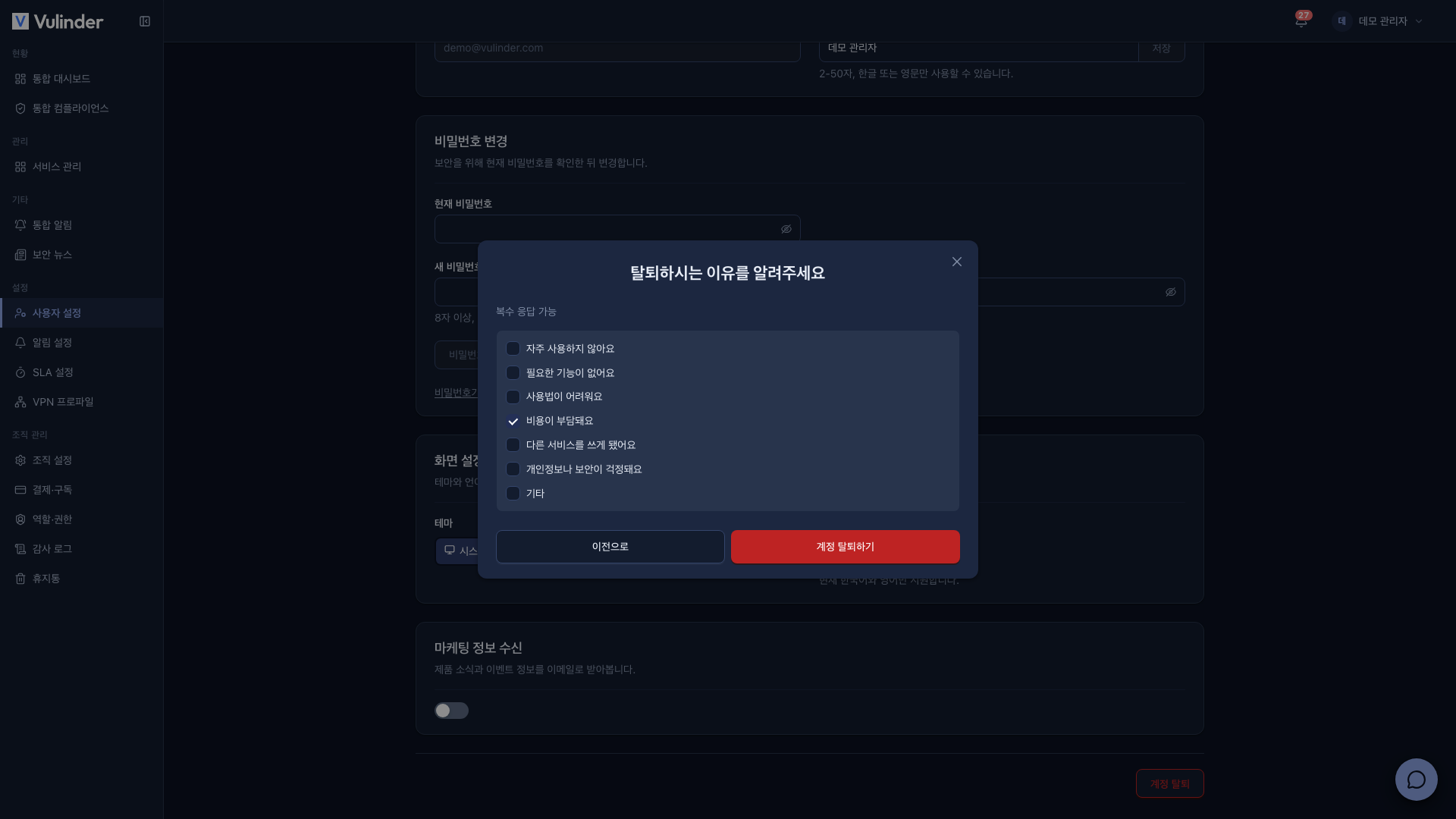
- Step 2 : Choose your reasons for leaving (multiple answers allowed). If you choose Other, you must type a reason.
- Click Delete account. "Your account has been deleted." is shown and you are taken to the sign-in screen.
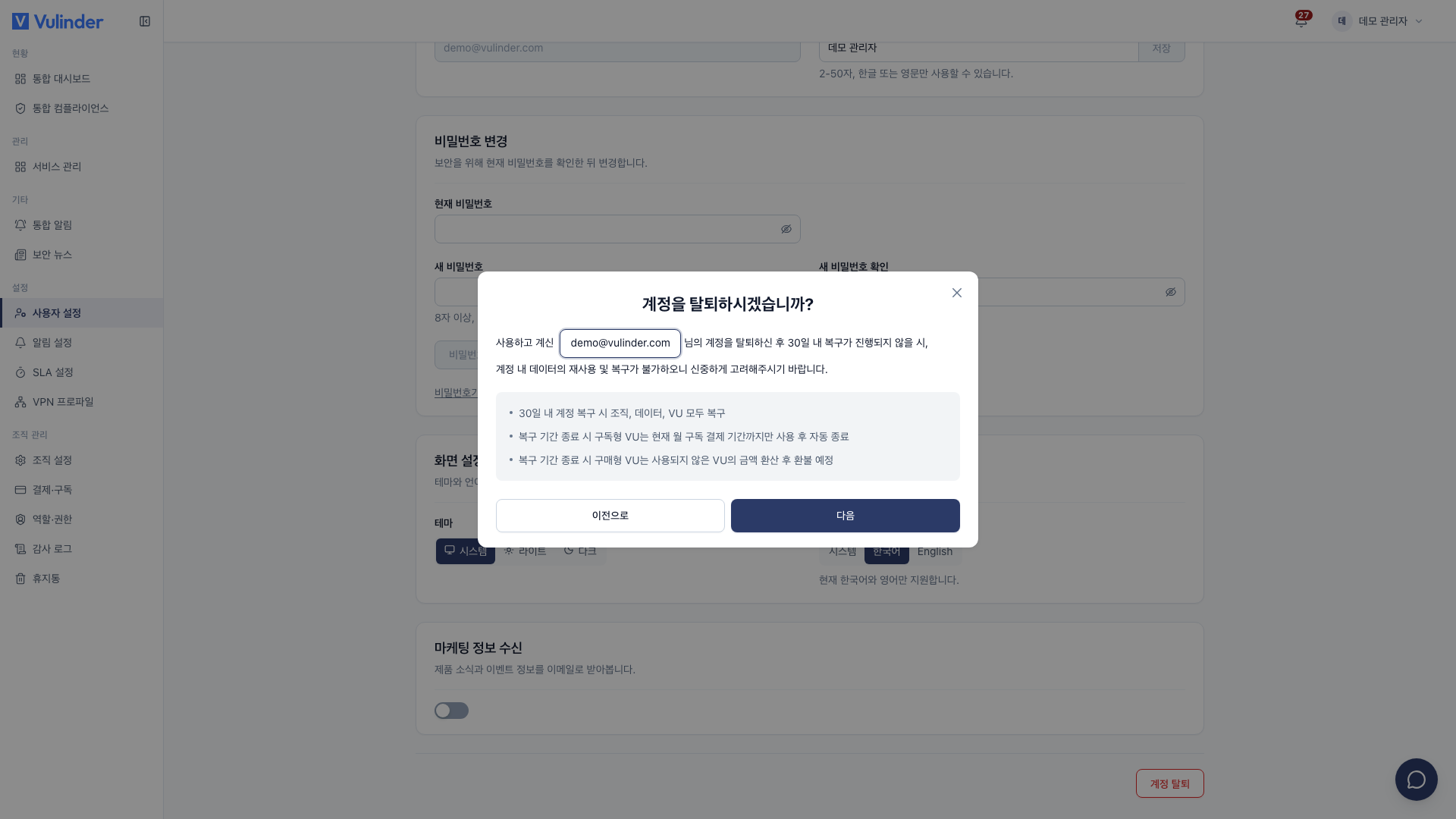
What happens on deletion depends on your role.
- Admin of an organization used alone : The organization is deleted too.
- Restored within the recovery period : The organization, its data, and its VU all come back.
- Subscription VU after the recovery period : Usable until the end of the current monthly billing period, then cancelled.
- Purchased VU after the recovery period : Unused VU is converted to an amount and refunded.
- Manager · member : You leave your organization, and the organization and its VU are unaffected.
Restore account
If you sign in with a deleted account within the recovery period, the Restore account screen appears. Besides email sign-in, the same screen also appears in the following cases.
- Signing up again with the same email
- Verifying your email
- Social login (Google, GitHub)
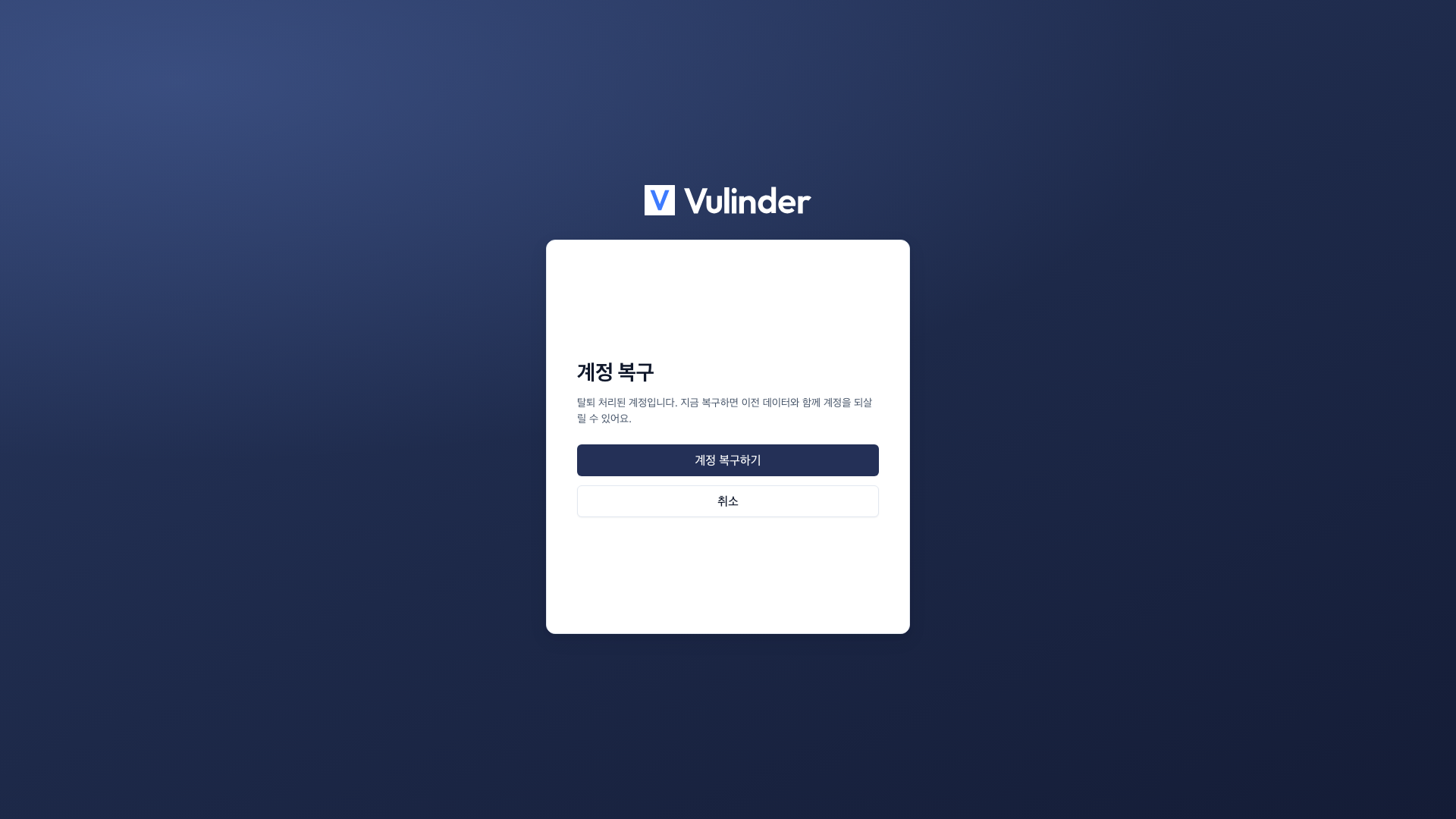
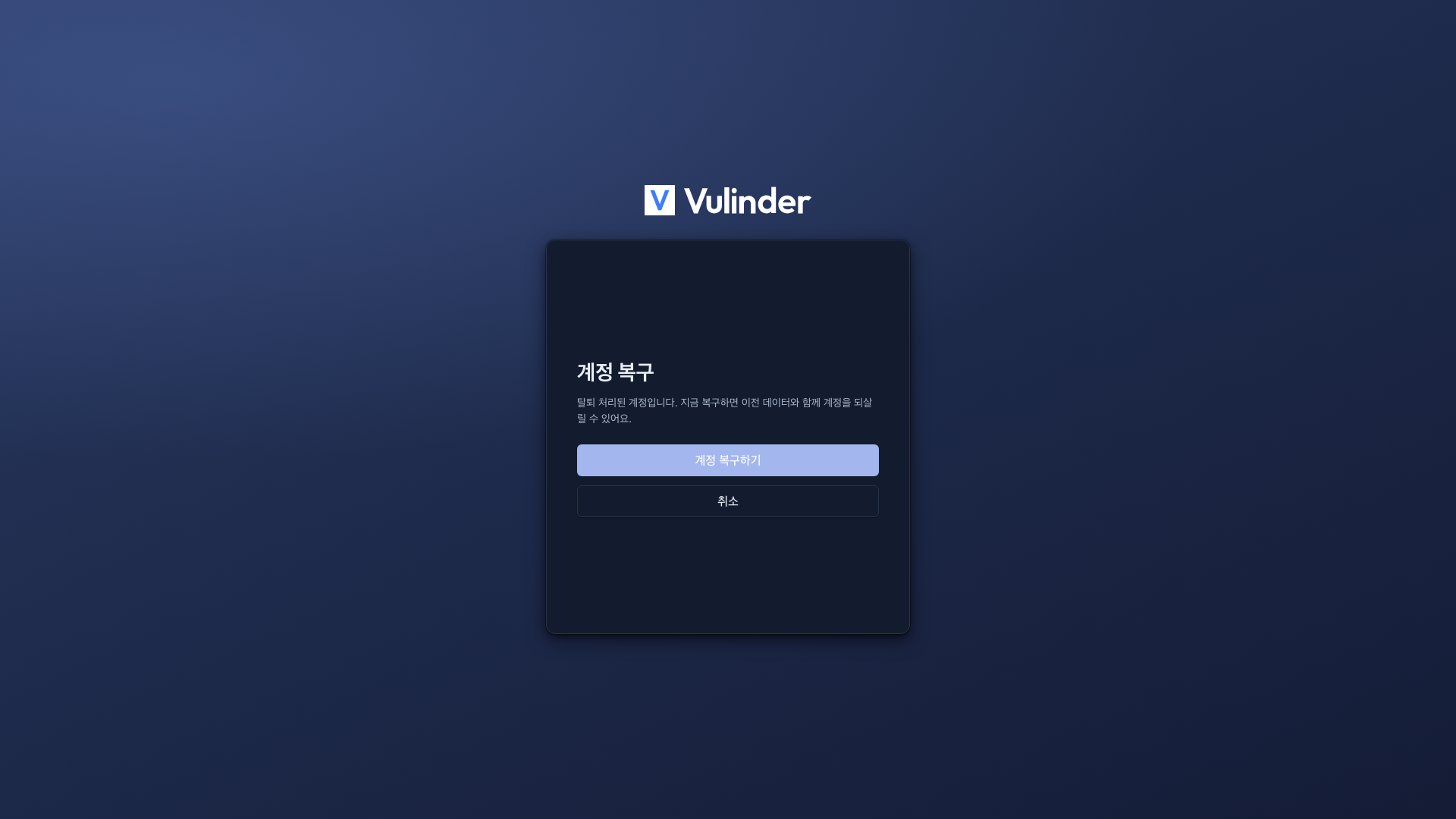
- Sign in with the deleted account.
- On the Restore account screen, click Restore my account. To skip restoring, click Cancel.
- Once restored, where you go depends on your situation.
- Usually : You go straight to the service screens.
- If you need to subscribe again : "Your account has been restored." is shown with Continue.
- If you have no organization : You go to the Join an organization screen.
After restoring, things look like this.
- An organization you used alone : The organization and services deleted along with your account come back.
- Subscription
- Billing period not ended : You keep using it as before.
- Billing period ended : "Your subscription is canceled. To keep using paid features, subscribe again in settings." is shown, and you subscribe again in Billing.
- Payment card : The card you registered is not restored, so register it again.
- If you belonged to someone else's organization : You left that organization when you deleted your account, so you have no organization after restoring. On the Join an organization screen, enter an invite token to rejoin or create a new organization.
Join an organization screen
After leaving an organization, or when you sign in with an account that has no organization, you are taken to the Join an organization screen.
- Join invited organization : Enter the invite token you received from the admin, click Verify, then join. If the organization's seats are all taken, a notice says you cannot join.
- Create new organization : Create a new organization with yourself as the admin.
VU and refund handling
There is no refund button on the user screens. Refunds are processed automatically in the cases below.
| Situation | Subscription VU | Purchased VU |
|---|---|---|
| Manager · member leaves the organization | No effect | No effect (no refund) |
| Admin leaves the organization (organization deleted) | Usable until the end of the current billing period, then cancelled | Unused amount converted and refunded |
| Admin of an organization used alone deletes their account | When the recovery period ends, usable until the end of the billing period, then ends | When the recovery period ends, unused amount refunded |
Once a refund is processed, the payment's status changes in the billing history of Billing. A full refund shows Canceled, and a partial one shows Partially refunded.
Related documents
- Account settings : Personal account settings
- Members · Roles : Removing members, invite tokens
- Billing : Subscription cancellation, refund policy